
What exactly is the meaning of a folder?
Track Your Course Progress
You are currently studying as a guest. Your course progress and quiz results will not be saved unless you login to your EduCourse account. Login to track your progress and qualify for your certificate.
Folders in Windows help you organize your files. You can put files inside a folder, just like you’d put paper records on the inside of a real folder. In the picture below, you see a desktop with some folders.
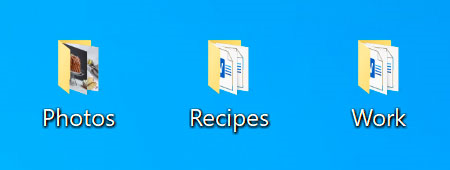
Folders serve as virtual containers for organizing and storing your files on a computer, much like physical folders do for paper documents. Here’s how they work:
- Creating Folders:
- To create a new folder, right-click on an empty area of your desktop or within File Explorer, then select “New” and “Folder” from the context menu. You can then give the folder a name to identify its contents.
- Moving Files into Folders:
- You can move files into folders by dragging and dropping them onto the folder icon or by using cut-and-paste or copy-and-paste commands. This helps keep related files together and makes them easier to find.
- Nested Folders:
- Folders can contain other folders, creating a hierarchical structure. This allows you to organize files into multiple levels of subfolders, providing further organization and categorization.
- Accessing Files within Folders:
- To access files stored within a folder, simply double-click on the folder icon to open it. You can then view, edit, or move the files as needed.
- Searching for Files:
- If you’re looking for a specific file within a folder (or across multiple folders), you can use the search function in Windows. Simply type the name or part of the name of the file you’re looking for in the search bar, and Windows will display matching results.
- Deleting Folders:
- If you no longer need a folder and its contents, you can delete it. Right-click on the folder you want to delete and select “Delete” from the context menu. Windows will move the folder and its contents to the Recycle Bin, where you can permanently delete them if desired.
- Customizing Folders:
- You can customize folders by changing their icons, applying different view settings (such as icon, list, or details view), and assigning custom colors or tags to them. This allows you to personalize your file organization system to suit your preferences.
By utilizing folders effectively, you can keep your digital files organized, easily locate the information you need, and maintain a clutter-free workspace on your computer.
