
Drag and drop
Track Your Course Progress
You are currently studying as a guest. Your course progress and quiz results will not be saved unless you login to your EduCourse account. Login to track your progress and qualify for your certificate.
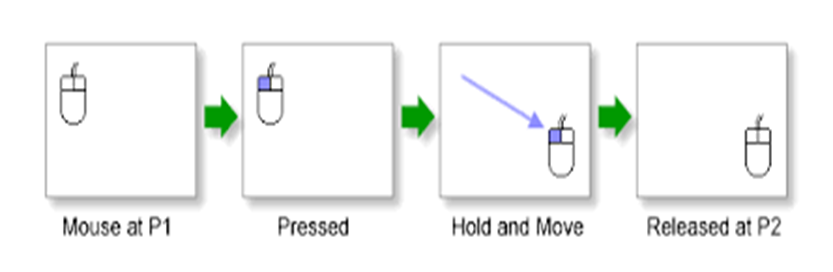
Drag and drop is a user interface technique that allows users to select, move, and manipulate objects on a computer screen using a pointing device such as a mouse or trackpad. Here’s how it works:
1. Selection:
- To initiate a drag and drop action, first, you need to select the object or content you want to move. This can be a file, folder, text, image, or any other draggable item on the screen.
- Click on the object and hold down the left mouse button (or use a similar gesture on a trackpad) to begin the selection.
2. Dragging:
- While holding down the mouse button, move the cursor (or your finger on a trackpad) while still holding the button. This action “grabs” the selected object and moves it with the cursor.
3. Drop Target:
- Navigate the cursor to the location where you want to drop or place the selected object. This can be another location on the screen, a different window, or a specific area within an application.
4. Dropping:
- Release the mouse button (or lift your finger on the trackpad) to “drop” the object at the desired location. The object will be placed or moved to the new location as specified.
5. Applications:
- Drag and drop functionality is widely used in various applications and operating systems for tasks such as:
- Rearranging icons on the desktop or within folders.
- Moving files and folders between directories in file explorer windows.
- Organizing playlists in media players.
- Reordering tasks or events in calendar applications.
- Arranging elements on a canvas in graphic design software.
6. Multiple Selections:
- Some interfaces support drag and drop for multiple selections. You can select multiple objects and drag them all together to a new location.
7. Copy vs. Move:
- In certain contexts, dragging and dropping may result in copying the object to the new location, while in others, it may move the object. This behavior depends on the specific implementation and user settings.
8. Undo:
- Many applications allow you to undo drag and drop actions in case you make a mistake or change your mind about the placement of an object.
By mastering drag and drop functionality, users can efficiently organize, rearrange, and manage digital content on their computers, enhancing productivity and workflow efficiency.
