
To remove a file or folder, follow these steps: :
You may remove a file when you no longer require it. When you remove a file, it is automatically sent to the Recycle Bin. If you change your mind, you may return the file to its original place from the Recycle Bin. If you are certain and you want to delete the file forever, you must empty the Recycle Bin.
1.Drag the file to the Recycle Bin icon on the desktop. You may also select the file by clicking it and then pressing the Delete key on your computer.
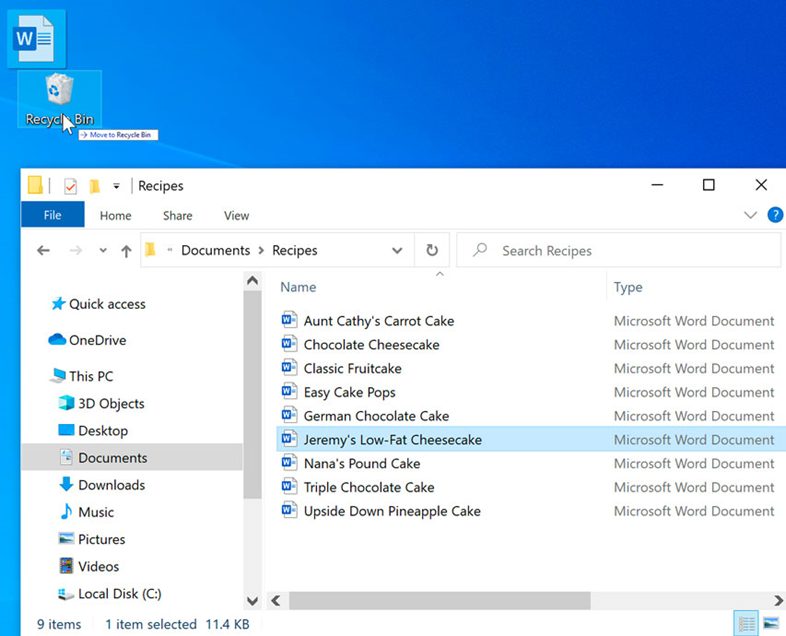
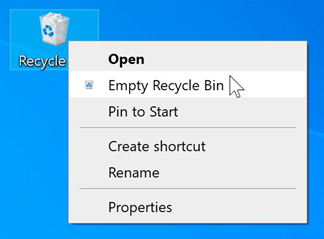
2. To remove the file permanently, right-click the Recycle Bin icon and choose Empty Recycle Bin. All items in the Recycle Bin would be erased forever.
NOTE: When you delete a folder, all the files inside it will also be deleted.
- Restore Deleted Files from the Recycle Bin:
- If you accidentally delete a file and wish to retrieve it, you can open the Recycle Bin by double-clicking its icon on the desktop. Inside the Recycle Bin, you’ll see a list of deleted files. Right-click on the file you want to restore and select “Restore.” The file will be returned to its original location on your computer.
- Permanently Delete Individual Files from the Recycle Bin:
- If you’re certain you want to permanently delete specific files from the Recycle Bin without restoring them, you can do so by right-clicking on the file and selecting “Delete” or “Permanently Delete.” This action will bypass the Recycle Bin and immediately erase the file from your computer.
- Empty the Recycle Bin:
- To permanently remove all files from the Recycle Bin and free up storage space on your computer, you can empty the Recycle Bin. Right-click on the Recycle Bin icon on your desktop and select “Empty Recycle Bin.” A confirmation dialog may appear to ensure you want to permanently delete all items. Click “Yes” to proceed with emptying the Recycle Bin.
- Recover Permanently Deleted Files (Optional):
- In some cases, you may realize you need a file that you’ve already emptied from the Recycle Bin. In such situations, you can use data recovery software to attempt to recover the deleted files. However, keep in mind that the success of file recovery depends on various factors, such as how long ago the files were deleted and whether new data has overwritten them on the disk.
By following these steps, you can effectively manage your files and folders on your computer, including deleting unwanted files, restoring accidentally deleted items, and permanently removing files from the Recycle Bin when necessary. Remember to exercise caution when deleting files to avoid unintentional data loss.
