
Typing capital letters
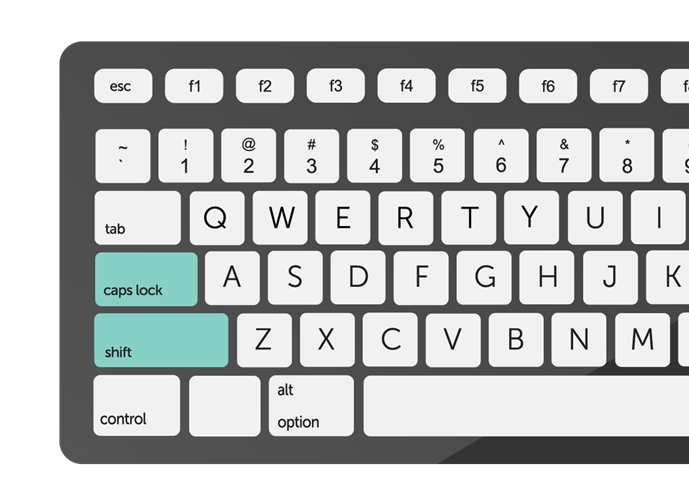
When composing text in a letter or email, capitalization is unquestionably required. To type a capital letter, press and hold one of the Shift keys while tapping on the desired letter. Then, you may release Shift and resume typing in lowercase.
To write in all capital letters, hit the Caps Lock key, then press it again to return to lowercase.
Typing capital letters on a computer keyboard is essential for proper writing and formatting. Here’s how to type capital letters efficiently:
1. Shift Key:
- The primary method for typing capital letters is to use the Shift key. Press and hold the Shift key while simultaneously pressing the letter you want to capitalize. For example, to type a capital “A,” press and hold Shift and then press the “A” key.
2. Caps Lock:
- Another method is to use the Caps Lock key. Pressing the Caps Lock key toggles capitalization mode on or off. When Caps Lock is activated, all letters typed will be capitalized until Caps Lock is turned off. Note that Caps Lock affects only alphabetical characters, not numbers or symbols.
3. Shift Lock (Shift Lock or ShiftLk):
- Some keyboards may have a Shift Lock or ShiftLk key, which functions similarly to Caps Lock. Pressing Shift Lock activates capitalization mode until it is turned off. This feature is less common than Caps Lock and may not be available on all keyboards.
4. Shift Key for Symbols:
- In addition to letters, the Shift key is used to access symbols and special characters located above the number keys. For example, to type the exclamation mark “!”, press Shift and the number 1 key.
5. Shift for Modifier Keys:
- When typing keyboard shortcuts or commands that involve modifier keys such as Ctrl, Alt, or Windows key, you may need to use the Shift key to capitalize the letter while pressing the modifier key. For example, to type Ctrl + C (copy), press and hold Ctrl while also pressing Shift and the letter “C.”
6. Sticky Keys (Accessibility Feature):
- Sticky Keys is an accessibility feature in some operating systems that allows users to press one key at a time for keyboard shortcuts instead of simultaneously pressing multiple keys. It can be configured to capitalize letters using the Shift key, making it easier for users with physical disabilities to type capital letters.
7. Software Features:
- Some word processing and text editing software may include features for automatically capitalizing letters at the beginning of sentences or proper nouns. Check the software’s settings or options menu for options related to auto-capitalization.
By mastering the use of the Shift key and other capitalization methods, you can efficiently type capital letters and produce well-formatted written content on your computer.
