
Laptop trackpad or touchpad
Track Your Course Progress
You are currently studying as a guest. Your course progress and quiz results will not be saved unless you login to your EduCourse account. Login to track your progress and qualify for your certificate.
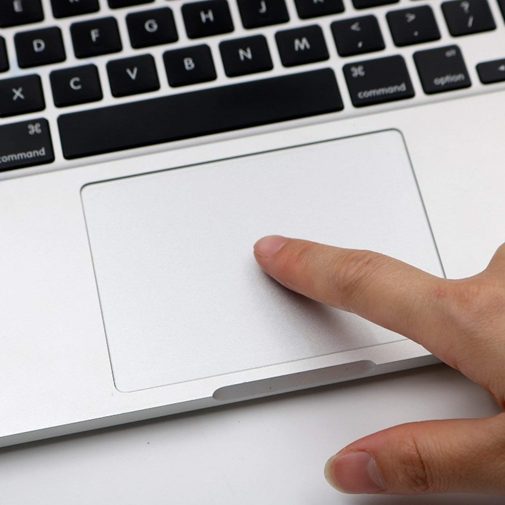
The keyboard of a laptop may have a built-in mouse. This is a finger-touch operation. This special area is used in lieu of a mouse and only requires extremely brief finger motions to move the pointer across the screen.
1. Functionality:
- The trackpad or touchpad detects the movement and gestures of your fingers and translates them into cursor movements and actions on the screen.
- It typically supports various gestures, such as tapping, clicking, scrolling, swiping, and pinch-to-zoom, providing a versatile and intuitive way to navigate and interact with your laptop.
2. Physical Appearance:
- The trackpad or touchpad is a flat, rectangular surface located below the keyboard on most laptops. It may have a textured or smooth finish, depending on the laptop model.
- It usually has one or more physical buttons located at the bottom or integrated into the surface for left and right-click actions.
3. Configuration and Settings:
- Users can customize the behavior and settings of the trackpad or touchpad through the operating system’s control panel or settings menu.
- Settings may include options to adjust sensitivity, enable or disable gestures, configure multi-touch gestures, and customize button actions.
4. Multi-Touch Gestures:
- Multi-touch gestures allow users to perform various actions using multiple fingers simultaneously.
- Common multi-touch gestures include:
- Two-finger scrolling: Scroll vertically or horizontally by swiping two fingers on the trackpad.
- Pinch-to-zoom: Zoom in or out on content by pinching or spreading two fingers apart on the trackpad.
- Three-finger swipe: Switch between open applications or desktops by swiping three fingers left or right on the trackpad.
5. Accessibility Features:
- The trackpad or touchpad may include accessibility features to accommodate users with disabilities or specific needs.
- These features may include options for adjusting cursor speed, enabling touchpad tapping, or configuring gestures for easier navigation.
6. Advantages:
- The trackpad or touchpad provides a compact and integrated solution for cursor control on laptops, eliminating the need for an external mouse.
- It allows for precise and efficient navigation, especially when using multi-touch gestures for tasks such as scrolling, zooming, and switching between applications.
7. Tips for Use:
- Keep the trackpad or touchpad clean and free of dirt, dust, and moisture to ensure optimal performance.
- Familiarize yourself with the available gestures and settings to maximize productivity and convenience when using the trackpad or touchpad.
By leveraging the functionality and versatility of the laptop trackpad or touchpad, users can navigate, interact, and control their laptops with ease and efficiency, whether for work, study, or entertainment purposes.
