
To move a file:
Track Your Course Progress
You are currently studying as a guest. Your course progress and quiz results will not be saved unless you login to your EduCourse account. Login to track your progress and qualify for your certificate.
Moving a file through one place to another is easy. For instance, you might want to move a file from the desktop to the Documents folder.
- Click the left button of the mouse and drag the file to where you want it.
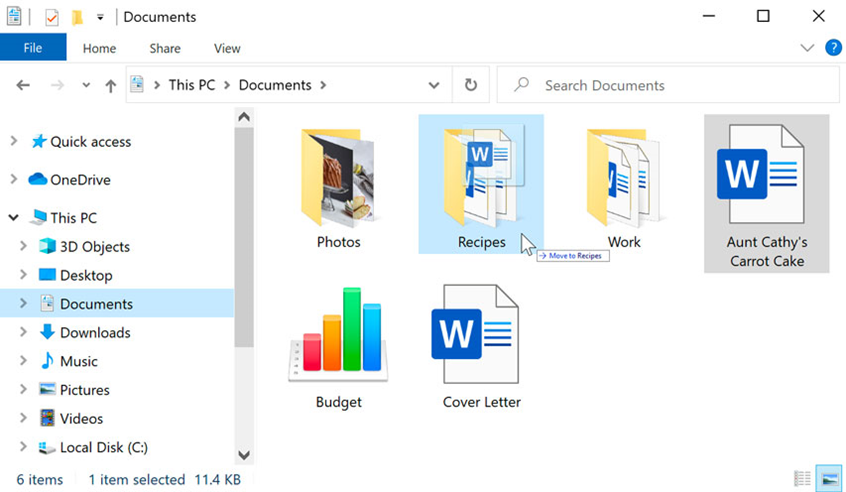
2. Let go of the mouse. The file will show up in its new place. In this case, we opened the folder to see where the file had been moved to.
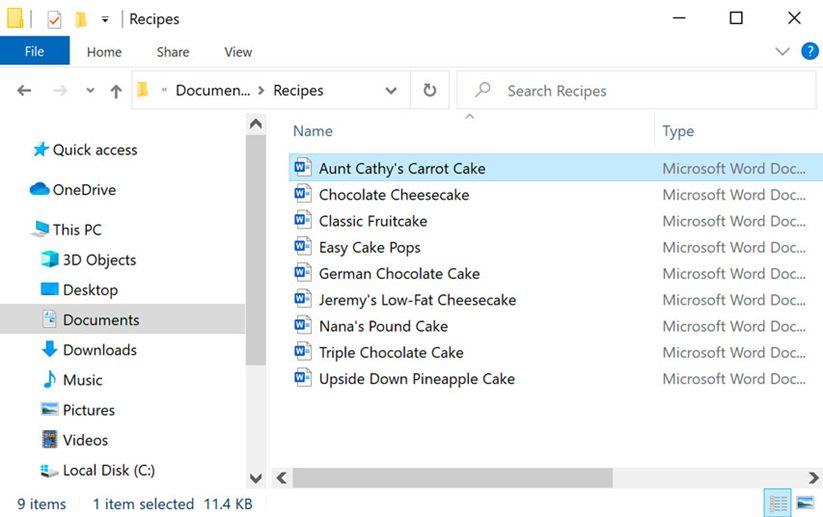
Tip: You can move a whole folder using the same method. When you move a folder, all of the files inside it will also move
Organisational Benefits:
- Moving files and folders allows you to maintain a well-organized directory structure on your computer. By placing related files together in appropriate folders, you can easily locate and access them when needed.
- Regularly organizing and moving files can help prevent clutter and ensure that your digital workspace remains efficient and manageable. This can save you time and frustration when searching for specific documents or data.
Backup and Archiving:
- Moving files to specific folders can also facilitate backup and archiving processes. For example, you might move older or less frequently accessed files to an archive folder to free up space on your primary storage drive while still retaining access to them if needed.
- By organizing files into folders based on their content, you can streamline the backup process by targeting specific folders for backup, ensuring that important data is regularly backed up and protected against loss.
Collaboration and Sharing:
- When collaborating with others or sharing files, organizing and moving files into shared folders can simplify collaboration and streamline communication. Shared folders can serve as centralized locations for team members to access and collaborate on shared documents, ensuring everyone has access to the latest versions.
- Moving files to shared network drives or cloud storage platforms can also facilitate seamless sharing and collaboration across multiple devices and locations, enabling teams to work together more effectively regardless of geographical barriers.
Version Control:
- Moving files within version control systems, such as Git or Subversion, plays a crucial role in managing software development projects. Version control allows developers to track changes to files over time, revert to previous versions if necessary, and collaborate on code with teammates.
- By moving files to specific branches or directories within a version control system, developers can manage code changes, merge contributions from multiple developers, and ensure that the project remains organized and structured.
By considering these additional aspects related to moving files and folders, users can leverage file organization techniques to enhance productivity, collaboration, and data management practices in various contexts.
