
SSD: Solid State Drive
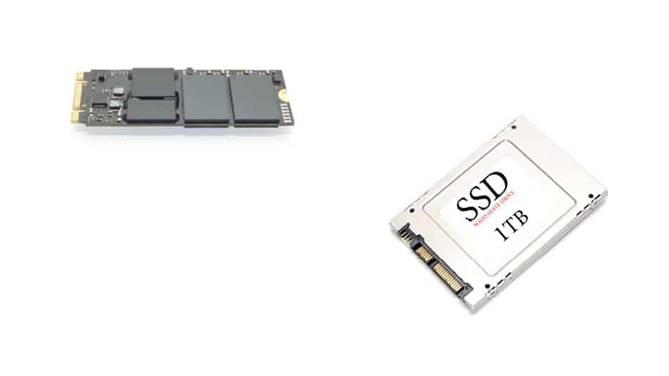
A Solid State Drive (SSD) is a storage device that uses solid-state memory to store data persistently. Unlike traditional hard disk drives (HDDs) that use spinning magnetic disks and mechanical components, SSDs have no moving parts, resulting in faster performance, quieter operation, and improved reliability. Here’s an overview of SSDs:
SSDs are another form of hard disk, however they lack moving components. It comprises of a bank of flash memory capable of storing a considerable quantity of data. Despite the fact that SSDs are always growing in capacity, they are not cost-effective for storing massive volumes of data. That being said, the SSD is a high-performance drive. It is quick and resistant to damage caused by drops or minor impacts. SSDs are offered as 2.5-inch laptop encased drives and M.2 SDDs, which are the two most popular types on the market.
Therefore, if feasible, I always prefer SSDs for portable laptops. In our other post, you may learn more about whether or not SSDs are worthwhile.
1. Structure and Components:
- SSDs consist of NAND flash memory chips, a controller, and other electronic components housed in a durable enclosure.
- NAND flash memory cells store data in a non-volatile manner, meaning the data is retained even when power is removed.
- The controller manages data storage, retrieval, and wear leveling algorithms to optimize performance and lifespan.
2. Types of SSDs:
- SATA SSD: SATA (Serial ATA) SSDs connect to the computer’s motherboard via SATA interface cables. They are compatible with most desktops and laptops and offer significant performance improvements over traditional HDDs.
- NVMe SSD: NVMe (Non-Volatile Memory Express) SSDs use the NVMe protocol to communicate with the computer’s CPU via PCIe (Peripheral Component Interconnect Express) lanes. NVMe SSDs offer higher bandwidth and lower latency than SATA SSDs, making them ideal for high-performance computing tasks.
- M.2 SSD: M.2 SSDs are small, compact SSDs that connect directly to the motherboard via an M.2 slot. They come in both SATA and NVMe variants and are commonly used in laptops and compact desktops for their space-saving design.
- PCIe SSD: PCIe SSDs are expansion cards that plug into PCIe slots on the motherboard. They offer high-speed data transfer rates and are often used in workstation PCs and servers for demanding workloads.
3. Advantages of SSDs:
- Faster Performance: SSDs offer significantly faster data transfer speeds, lower latency, and quicker boot times compared to HDDs, resulting in improved overall system responsiveness.
- Reliability: SSDs have no moving parts, making them more resistant to shock, vibration, and mechanical failure than HDDs. This results in improved reliability and durability, especially in portable devices.
- Energy Efficiency: SSDs consume less power than HDDs, leading to longer battery life in laptops and reduced energy costs in desktops and servers.
- Silent Operation: Since SSDs have no moving parts, they produce no noise during operation, contributing to quieter computing environments.
- Compact Form Factor: SSDs are available in compact form factors, such as M.2 and PCIe cards, making them suitable for space-constrained systems like ultrabooks and small form factor PCs.
4. Applications of SSDs:
- Operating System Drive: SSDs are commonly used as the primary drive for installing the operating system (OS), resulting in faster boot times and improved system responsiveness.
- Gaming: SSDs are popular among gamers for storing games and reducing load times, providing a smoother gaming experience.
- Professional Workloads: SSDs are used in professional applications such as video editing, graphic design, and software development for faster data access and workflow efficiency.
- Enterprise Storage: SSDs are deployed in enterprise environments for high-speed data storage, caching, and virtualization, improving server performance and reducing latency.
5. Considerations When Choosing an SSD:
- Capacity: SSDs come in various capacities ranging from a few hundred gigabytes to several terabytes. Choose a capacity that meets your storage needs and budget.
- Interface: Consider the interface (SATA, NVMe, M.2, PCIe) and compatibility with your motherboard or device when selecting an SSD.
- Endurance: Check the endurance rating or Terabytes Written (TBW) specification of the SSD, which indicates its lifespan and durability under heavy usage.
- Price: SSD prices have become more affordable over time, but they still generally cost more per gigabyte compared to HDDs. Balance performance and capacity requirements with budget constraints when purchasing an SSD.
SSDs offer significant advantages over traditional HDDs in terms of performance, reliability, and energy efficiency. They are widely adopted in consumer electronics, desktops, laptops, servers, and enterprise storage systems for their superior speed and durability.
