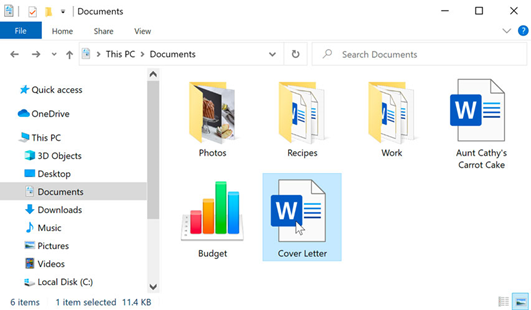
To access a file:
Accessing Files in Windows:
Accessing files on your computer is a straightforward process in Windows. Here’s how to do it:
- Locate the File:
Navigate to the location where the file is stored. This could be on your desktop, in File Explorer, or within a specific folder.
- Open the File:
Once you’ve located the file, double-click on it to open it. Alternatively, you can right-click on the file and select “Open.”
- File Opens in Default Program:
When you open a file, it will launch in the default program associated with its file type. For example, a Microsoft Word document (.docx) will open in Microsoft Word, while an image file (.jpg) will open in the default image viewer.
- Viewing and Editing:
Once the file is open, you can view its contents and, if applicable, make edits or changes to it using the features provided by the program.
For example, if you open a Word document, you can read and edit the text; if you open an image file, you can view and edit the image using image editing tools.
- Save Changes (if necessary):
If you make any changes to the file, be sure to save them before closing the program. Most programs will prompt you to save changes when you close the file if you haven’t already done so.
- Close the File:
When you’re done with the file, you can close it by clicking the close button (usually an “X” in the top-right corner of the program window) or by selecting “Close” from the program’s menu.
- Repeat as Needed:
You can access and open as many files as you need in this manner. Simply repeat the process for each file you want to view or work with.
By following these steps, you can easily access and open files on your computer using Windows, allowing you to work with your digital documents efficiently and effectively.