
Hard Drive
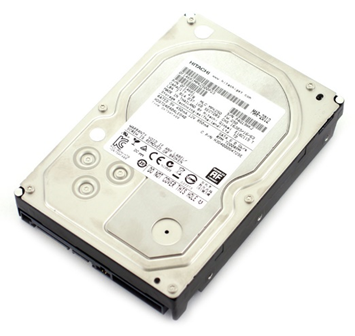
The hard drive is present in the majority of computers. Typically, a mechanical drive stores all the information.
In addition to preserving data, it can serve as the operating system’s boot storage.
An operating system is the software that allows a computer usable, such as Microsoft Windows. Mechanical weakness is the worst drawback of a hard drive.
A single misplaced impact can ruin an entire hard disk. A mechanical hard disk has one or more platters that rotate between 5200 and 10000 revolutions per minute (revolutions per minute).
The read and write heads are separated from the platter by only 0.002 (51 micro M) inches.
A hard drive, also known as a hard disk drive (HDD), is a non-volatile storage device that stores and retrieves digital data using magnetic storage and rotating platters. Here’s an overview of hard drives:
1. Structure and Components:
- Platters: Hard drives consist of one or more magnetic platters coated with a magnetic material. Data is stored on the platters in binary form using magnetic patterns.
- Read/Write Heads: Read/write heads are positioned above and below each platter and are used to read data from and write data to the magnetic surface.
- Spindle Motor: The spindle motor rotates the platters at high speeds (typically 5,400 to 7,200 revolutions per minute or RPM) to allow the read/write heads to access different parts of the disk.
- Controller: The controller manages data transfer between the hard drive and the computer’s CPU, as well as functions such as error correction, bad sector remapping, and power management.
2. Types of Hard Drives:
- Internal Hard Drives: Internal hard drives are installed inside a computer case and are commonly used for storing the operating system, applications, and user data.
- External Hard Drives: External hard drives connect to a computer via USB, Thunderbolt, or other interfaces and provide additional storage capacity for backups, file transfers, and portable data storage.
- Desktop Hard Drives: Desktop hard drives are designed for use in desktop computers and are available in various form factors (e.g., 3.5-inch, 2.5-inch) and capacities (e.g., terabytes).
- Laptop Hard Drives: Laptop hard drives are smaller and more compact than desktop hard drives, making them suitable for use in laptops and other portable devices.
- Enterprise Hard Drives: Enterprise hard drives are designed for use in servers and data centers and offer higher performance, reliability, and durability than consumer-grade drives.
3. Advantages of Hard Drives:
- High Capacity: Hard drives offer high storage capacities at relatively low cost per gigabyte, making them suitable for storing large amounts of data, such as multimedia files, documents, and applications.
- Cost-Effective: Hard drives are generally more affordable than solid-state drives (SSDs) on a per-gigabyte basis, making them a cost-effective storage solution for budget-conscious consumers and organizations.
- Compatibility: Hard drives are compatible with a wide range of devices, including desktops, laptops, servers, and external storage enclosures.
- Longevity: Hard drives have a long track record of reliability and durability, with some models rated for thousands of hours of continuous operation.
- Replaceable Parts: Unlike SSDs, hard drives have replaceable components, such as read/write heads and controller boards, which can extend the lifespan of the drive and facilitate data recovery in case of failure.
4. Considerations When Choosing a Hard Drive:
- Capacity: Choose a hard drive with sufficient capacity to meet your storage needs, taking into account factors such as the size of your data library, anticipated growth, and budget constraints.
- Speed: Consider the rotational speed of the hard drive (measured in RPM) and its impact on performance. Higher RPM drives typically offer faster data access and transfer speeds.
- Form Factor: Ensure that the hard drive’s form factor (e.g., 3.5-inch, 2.5-inch) is compatible with your computer or storage enclosure.
- Reliability: Look for hard drives with a reputation for reliability and durability, backed by warranties and customer reviews.
- Interface: Consider the interface (e.g., SATA, SAS) and compatibility with your computer’s motherboard or storage controller when selecting a hard drive.
Hard drives remain a popular storage option for consumers and businesses due to their high capacity, affordability, and compatibility with a wide range of devices. While newer technologies like solid-state drives (SSDs) offer faster performance, hard drives continue to play a vital role in data storage and archival purposes.
