
Typing with the keyboard
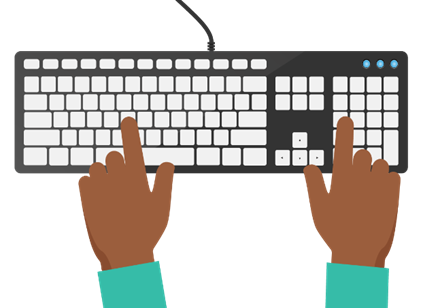
You may type on your keyboard by reaching each key with fingers from both hands. If you’re a beginner typist, it may be simpler to begin with both index fingers. As you get more proficient at typing, you will create a method that is most natural for you. Remember that precision is far more crucial than speed.
Typing with the keyboard is a fundamental skill for interacting with computers and entering text into various applications. Here’s a guide on how to effectively type using the keyboard:
1. Finger Placement:
- Position your fingers on the home row keys:
- Left hand: Place your left index finger on the “F” key, middle finger on the “D” key, ring finger on the “S” key, and pinky finger on the “A” key.
- Right hand: Place your right index finger on the “J” key, middle finger on the “K” key, ring finger on the “L” key, and pinky finger on the “;” key.
- Keep your fingers curved and resting lightly on the keys, with your thumbs positioned near the spacebar.
2. Typing Technique:
- Use a combination of your fingers to press the keys while maintaining proper finger placement on the home row.
- Press each key with a quick, light tap, using the appropriate finger for each key.
- Avoid excessive force or pounding on the keys, as this can lead to fatigue and strain.
3. Touch Typing:
- Touch typing is a typing technique where you type without looking at the keyboard, relying on muscle memory to locate keys by touch.
- Practice touch typing to improve your typing speed and accuracy. Use online typing tutorials or software programs to learn and reinforce touch typing skills.
4. Key Layout:
- Familiarize yourself with the layout of the keyboard, including the arrangement of letters, numbers, symbols, and function keys.
- Note the location of commonly used keys such as Enter, Backspace, Shift, Ctrl, Alt, and the arrow keys.
5. Shift Key for Capitalization:
- Use the Shift key to type uppercase letters. Press and hold the Shift key while simultaneously pressing the letter key you want to capitalize.
6. Spacebar for Word Separation:
- Use the spacebar to insert spaces between words while typing. Press the spacebar with your thumb to create a space after each word.
7. Enter Key for New Lines:
- Press the Enter key to start a new line or paragraph while typing. This key is commonly used to create breaks between lines of text.
8. Backspace for Corrections:
- Use the Backspace key to delete characters or correct mistakes while typing. Press the Backspace key to erase the character to the left of the cursor.
9. Keyboard Shortcuts:
- Learn common keyboard shortcuts for tasks such as copying (Ctrl + C), pasting (Ctrl + V), cutting (Ctrl + X), and undoing (Ctrl + Z). These shortcuts can improve your efficiency when typing and editing text.
10. Practice:
- Practice regularly to improve your typing speed, accuracy, and efficiency. Set aside time for typing exercises or engage in activities that require typing, such as writing emails, documents, or messages.
By mastering keyboard typing techniques and practicing regularly, you can become proficient at typing and increase your productivity when working with computers and digital devices.
