
Computer Speakers
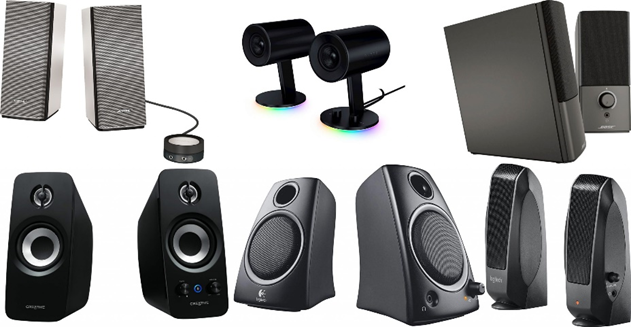
Connecting computer speakers to the sound card on the back of the machine.
Alternatively, they may be linked through a monitor with built-in speakers. In general, the sound quality of a monitor’s speakers is low. This is why the majority of individuals purchase computer speakers for their desks. On certain sound cards, you can even connect a 7.1 surround speaker system. This may enhance the experience of gaming, listening to music, and viewing a movie.
Computer speakers are external devices that are connected to a computer to produce audio output, allowing users to listen to music, videos, games, and other multimedia content. Here’s an overview of computer speakers:
1. Types of Computer Speakers:
- Desktop Speakers: These are compact speakers designed to sit on a desk or shelf. They typically come in pairs (left and right speakers) and connect to the computer via a wired connection or Bluetooth.
- Multimedia Speakers: Multimedia speakers are more advanced and may include additional features such as built-in amplifiers, subwoofers for bass output, and multiple drivers for improved sound quality.
- Gaming Speakers: Gaming speakers are designed specifically for gaming enthusiasts and may feature surround sound technology, customizable audio settings, and RGB lighting effects.
2. Speaker Components:
- Drivers: The drivers are the components responsible for producing sound. Most speakers have multiple drivers, including tweeters for high frequencies and woofers for low frequencies.
- Amplifier: The amplifier increases the electrical signal from the audio source to drive the speakers. Built-in amplifiers are common in multimedia speakers and powered desktop speakers.
- Subwoofer: Some speaker systems include a subwoofer, which is a specialized speaker for reproducing low-frequency sounds, such as bass. Subwoofers enhance the audio experience, especially for music and movies with deep bass tones.
3. Connection Options:
- Wired Connection: Most computer speakers connect to the computer using a wired connection, typically via a 3.5mm audio jack or USB port. Some high-end speakers may use optical or RCA connections for higher-quality audio.
- Wireless Connection: Wireless speakers use Bluetooth technology to connect to the computer wirelessly. This allows for greater flexibility in speaker placement and eliminates the need for cables.
4. Audio Quality:
- The audio quality of computer speakers can vary widely depending on factors such as speaker size, driver quality, amplifier power, and overall design. Higher-quality speakers typically produce clearer, more balanced sound with better bass response.
- When choosing computer speakers, consider factors such as frequency response, wattage, and impedance to ensure they meet your audio needs and preferences.
5. Controls and Features:
- Most computer speakers include built-in controls for adjusting volume, bass, and treble settings. Some speakers also feature additional controls for power, input selection, and audio effects.
- Advanced features such as Bluetooth connectivity, NFC pairing, and built-in microphones for hands-free calling may be available on certain speaker models.
6. Placement and Setup:
- Position the speakers on either side of the computer monitor or laptop for optimal stereo separation and sound distribution.
- Place the subwoofer on the floor or near the computer desk for balanced bass output.
- Adjust the speaker placement and angle to achieve the best sound quality and imaging.
Computer speakers are an essential accessory for any computer setup, providing an immersive audio experience for entertainment, productivity, and gaming. Choose speakers that suit your audio preferences, budget, and intended use to enjoy high-quality sound from your computer.
