
Using Windows’ built-in search file
Track Your Course Progress
You are currently studying as a guest. Your course progress and quiz results will not be saved unless you login to your EduCourse account. Login to track your progress and qualify for your certificate.
Type the name of the file you want to find in the Search Box beside the Start button. The results of the search will show up just above search box.
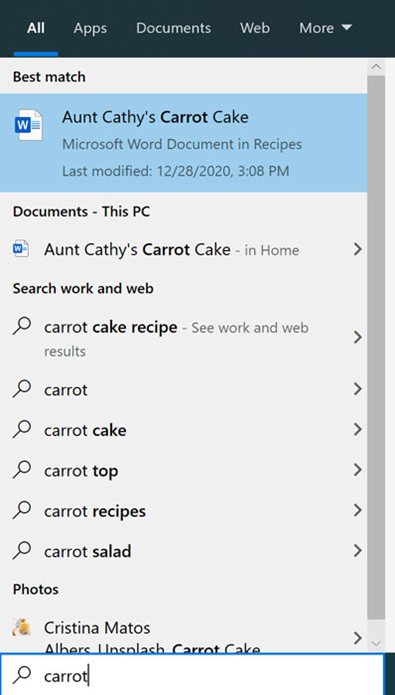
Searching for a File on Your Computer:
- Open the Start Menu:
- Click on the Start button located at the bottom-left corner of your screen.
- Locate the Search Box:
- You will find the Search Box either directly on the Start menu or beside the Start button, depending on your version of Windows.
- Enter the File Name:
- Click inside the Search Box and start typing the name of the file you want to find. Be as specific as possible to narrow down the results.
- View Search Results:
- As you type, the search results will begin to appear just above the Search Box. These results may include files, folders, applications, and even system settings that match your search query.
- Open the Desired File:
- Once you see the file you are looking for in the results, click on it to open it directly from the search results.
- Use Advanced Search Options (if necessary):
- If you are having trouble finding your file, you can use additional search options. Click on the Filters button or use specific keywords (like “documents,” “pictures,” or “videos”) to narrow your search.
- You can also use wildcards () if you’re unsure of the exact file name. For example, typing “report” will search for all files starting with “report.”
- Access File Location:
- If you want to see where the file is located on your computer, right-click on the file in the search results and select Open file location. This will open the folder containing the file.
Following these steps will help you efficiently locate and open files on your computer using the Search Box near the Start button.
