
Connecting your wireless mouse
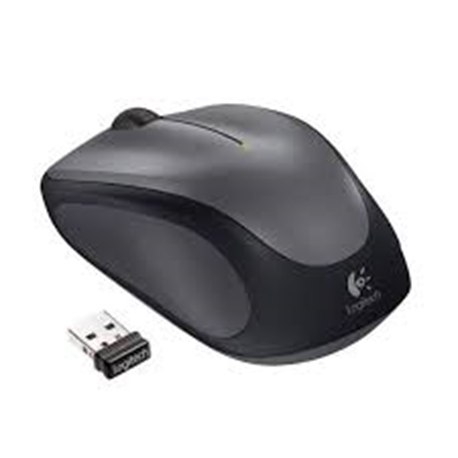
Because it requires Bluetooth-specific software, connecting a wireless mouse to your computer might be more difficult.
Bluetooth enables wireless communication between smart gadgets and PCs over short distances and without the usage of cords. This implies because if you take your wireless mouse farther than a few meters away from your pc, the connection will be lost.
Follow the instructions included with your mouse to link it to your computer. Bluetooth connection will be covered in subsequent sections.
Connecting a wireless mouse is a straightforward process, but sometimes you may encounter issues. Here’s a guide on how to connect a wireless mouse and troubleshoot common problems:
Connecting Your Wireless Mouse:
- Prepare the Mouse:
- Ensure that your wireless mouse has fresh batteries installed. Some mice come with rechargeable batteries that need to be charged before use.
- Turn on the Mouse:
- Switch on the power button on the bottom or side of the wireless mouse. Some mice may have a small switch or button to turn them on.
- Prepare Your Computer:
- Make sure your computer is powered on and ready to receive the wireless mouse signal.
- Locate the Receiver:
- If your wireless mouse uses a USB receiver (dongle), plug it into an available USB port on your computer. The receiver may be included with the mouse or built into the mouse itself.
- Pairing the Mouse:
- Once the receiver is connected, your computer should automatically detect and pair with the wireless mouse. If not, follow any on-screen instructions or refer to the mouse’s user manual for pairing instructions.
- Confirmation:
- Once the wireless mouse is successfully connected, you should see the cursor move on the screen when you move the mouse. Test the mouse to ensure that it’s functioning correctly.
Troubleshooting Wireless Mouse Connection:
- Check Batteries:
- Ensure that the batteries in your wireless mouse are correctly installed and have sufficient charge. Replace the batteries if they are low or depleted.
- Restart Computer:
- Sometimes, a simple restart of your computer can resolve connectivity issues with wireless devices. Restart your computer and try connecting the mouse again.
- Re-pair the Mouse:
- If the mouse is not connecting, try re-pairing it with the receiver. This may involve pressing a pairing button on the mouse or receiver and following the pairing instructions in the user manual.
- Move Closer to Receiver:
- Move the wireless mouse closer to the USB receiver to ensure a strong and stable connection. Interference from other wireless devices or physical obstacles can affect connectivity.
- Check USB Port:
- Ensure that the USB port you’re using is functioning correctly. Try plugging the receiver into a different USB port on your computer to rule out any port-related issues.
- Update Drivers:
- Check for and install any available updates for your computer’s operating system and mouse drivers. Outdated drivers can sometimes cause connectivity problems.
- Try Another Receiver:
- If possible, try using a different USB receiver with your wireless mouse to see if the issue is with the receiver itself.
- Contact Support:
- If you’ve tried the above steps and are still experiencing issues, contact the manufacturer’s support for further assistance or to inquire about warranty coverage.
By following these steps, you should be able to connect your wireless mouse to your computer successfully. If you encounter any problems, troubleshooting the connection using the provided steps can help resolve them efficiently.
