
File Explorer
File Explorer is a built-in program that lets you view and arrange files and folders. Before Windows 7, it was called Windows Explorer. Click the File Explorer icon on the taskbar or double-click any folder on your desktop to open File Explorer. There will be a new File Explorer window. Now you are ready to get started with your files and folders.
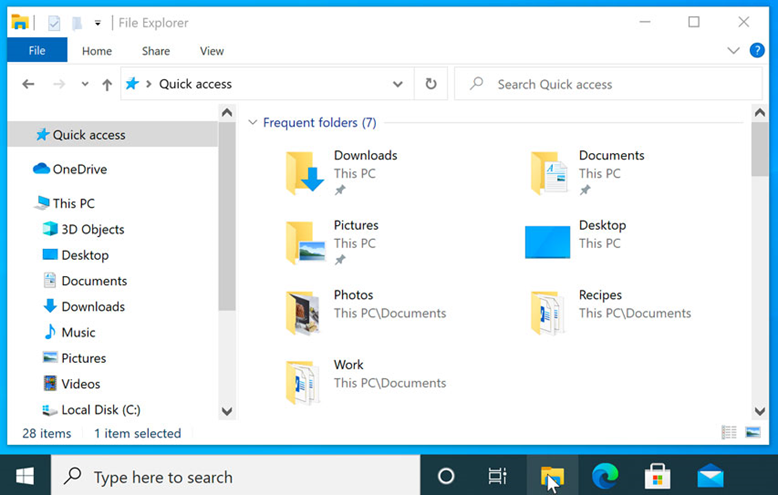
Double-clicking a folder in File Explorer will open it. Then you’ll be able to see all the files in that folder.
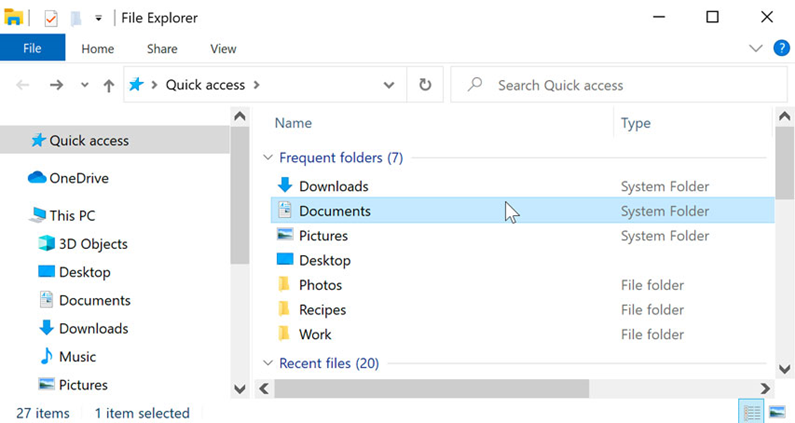
In the address bar at the top of the window, you can also see where a folder is.
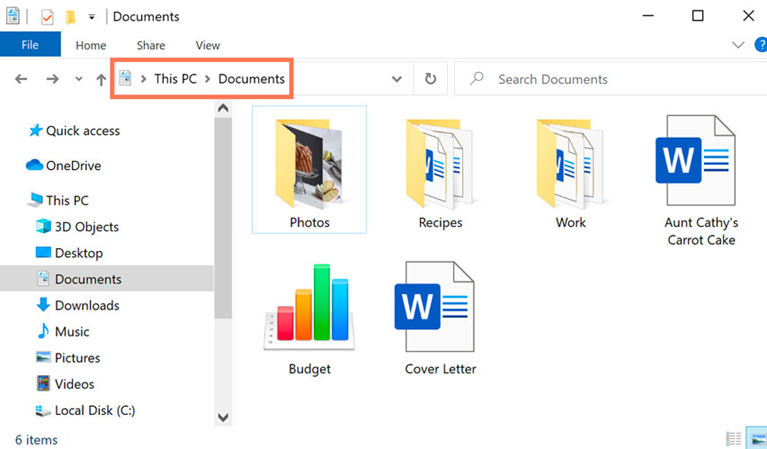
File Explorer is a versatile tool in Windows that allows you to navigate, manage, and organize your files and folders. Here’s how you can use it:
1. Open File Explorer:
- You can open File Explorer in more ways:
- Click on the File Explorer icon located on the taskbar (it looks like a folder) to open a new File Explorer window.
- Double-click on any folder icon on your desktop to open File Explorer at that location.
- Press the Windows key + E on your keyboard to open File Explorer quickly.
2. Navigate Folders:
- In File Explorer, you’ll see a navigation pane on the left side that displays a list of common folders such as Quick access, This PC, Documents, Downloads, etc.
- Click on any folder to navigate to its contents. You can also expand folders to view subfolders by clicking on the arrow next to them.
3. View and Arrange Files:
- In the main window of File Explorer, you’ll see the contents of the currently selected folder. Here, you can view files and folders arranged in various ways, such as by name, date modified, size, etc.
- Use the View tab in the File Explorer ribbon to change the layout, sorting, and grouping options according to your preferences.
4. Perform File Operations:
- File Explorer allows you to perform various file operations, including copying, moving, deleting, and renaming files and folders.
- To perform an operation, select the file or folder you want to work with, then use the commands in the Home tab of the File Explorer ribbon or right-click to access context menu options.
5. Search for Files:
- If you’re looking for a specific file, you can use the search box in the top-right corner of File Explorer to quickly find it. Simply type in the file name or a keyword related to the file, and File Explorer will display matching results in real-time.
6. Customize File Explorer:
- File Explorer offers various customization options to tailor it to your preferences. You can customize the Quick access section, change folder options, and customize the appearance of File Explorer windows.
7. Explore Additional Features:
- File Explorer offers many advanced features and functionalities, such as managing network drives, accessing cloud storage services, and utilizing file compression tools. Take the time to explore these features to maximize your productivity.
By mastering File Explorer, you can efficiently manage your files and folders, streamline your workflow, and keep your digital workspace organized in Windows.
