
Using a mouse
There are lots of different styles of mouse, but most have a left and a right button.
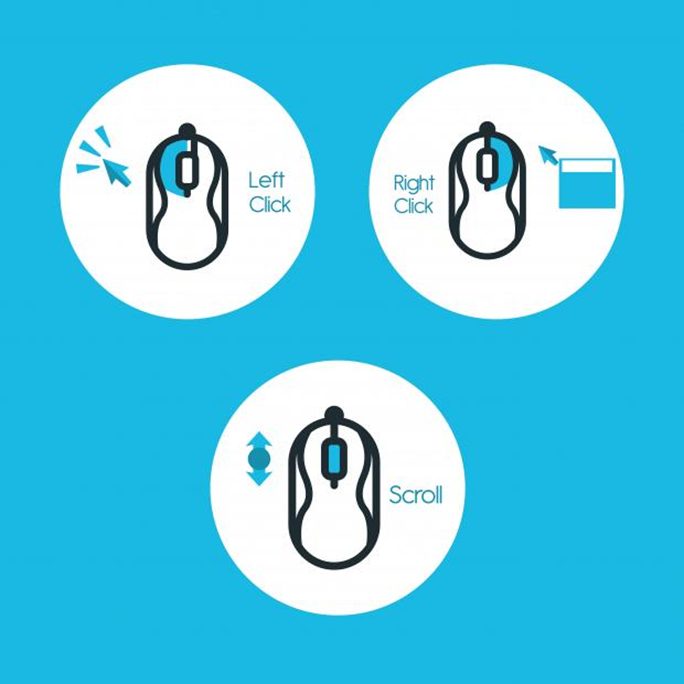
There are several types of mice, but most include left and right buttons.
Rest your hand on the mouse and place your index finger on the left button while your thumb rests on the side. The wire must point in the direction of the computer. Always keep the mouse in touch with a mouse pad, desk, or other firm surface.
The mouse is used to move the pointer around the display. Based on the ask t computer, the cursor varies. As an arrow, it is used to move and select items, as a hand to click on links while browsing the Internet, and as an hourglass when awaiting the computer to complete a task.
Using a mouse is a fundamental method of interacting with a computer, providing precise control over the cursor and enabling users to navigate graphical user interfaces (GUIs), select objects, and perform various actions. Here’s a guide on using a mouse effectively:
1. Basic Components:
- A typical mouse consists of several components, including:
- Buttons: Primary (left), secondary (right), and sometimes additional buttons for scrolling or other functions.
- Scroll Wheel: Located between the primary and secondary buttons, used for scrolling vertically or horizontally.
- Optical Sensor: Tracks the mouse’s movement on a surface.
2. Setup:
- Connect the mouse to your computer’s USB port or use a wireless receiver if it’s a wireless mouse. Your computer should recognize the mouse automatically, and you can start using it right away.
3. Cursor Movement:
- Place the mouse on a flat surface, such as a mouse pad or desk.
- Move the mouse horizontally or vertically to control the movement of the cursor on the screen.
4. Clicking:
- Primary Click (Left): Press the left mouse button once to perform a primary click, used for selecting objects, activating buttons, or interacting with GUI elements.
- Secondary Click (Right): Press the right mouse button once to perform a secondary click, used for accessing context menus, additional options, or alternative actions.
5. Double-Clicking:
- Quickly press and release the left mouse button twice in succession to perform a double-click. This action is commonly used for opening files, launching applications, or selecting text.
6. Drag and Drop:
- Click and hold down the left mouse button on an object, then move the mouse while still holding the button to “drag” the object. Release the button to “drop” the object at the desired location.
7. Scroll Wheel:
- Roll the scroll wheel up or down to scroll vertically through documents, web pages, or other content. Some mice also support horizontal scrolling by tilting the scroll wheel left or right.
8. Customization:
- Many mice come with additional features or customization options. You can adjust mouse settings, such as pointer speed, button assignments, scroll behavior, and sensitivity, through your computer’s settings or dedicated mouse software.
9. Ergonomics:
- Pay attention to ergonomics to ensure comfortable and efficient mouse usage. Choose a mouse with a design that fits your hand comfortably and consider using a mouse pad with wrist support to prevent strain during prolonged use.
10. Maintenance:
- Keep your mouse clean and free of dust and debris to ensure smooth operation. Regularly clean the mouse surface and sensor using a soft cloth or cotton swab.
By mastering the basics of using a mouse, you can navigate your computer’s interface with ease and precision, improving your overall computing experience and productivity.
