
Google Apps menu (App Launcher)
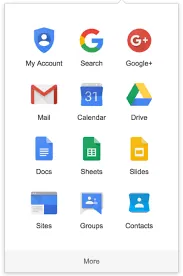
The Google Apps menu, often called the App Launcher, is one of the most important navigation features in Google Workspace. It is the main shortcut that helps users move quickly between Google’s online tools without needing to type web addresses or open multiple tabs manually. Once you understand how the App Launcher works, using Google Workspace becomes much easier because you always know where to go to access Gmail, Google Drive, Google Docs, Google Sheets, Google Slides, Google Calendar, and other Google apps.
The App Launcher is usually shown as a small grid icon made up of dots or squares. You normally find it near the top of the screen when you are signed in to your Google account, often in the upper-right area of Google services. When you click this grid icon, a panel opens showing a selection of Google apps. This panel is the Apps menu, and it acts like a central “start menu” for Google’s cloud-based services.
In simple terms, the Google Apps menu is designed to keep everything connected and easy to reach. Without it, users might have to open each tool separately by typing the website address, searching on Google, or clicking bookmarks. The App Launcher saves time by keeping the main tools available from almost anywhere within the Google Workspace environment. Whether you are reading an email, working in Drive, or editing a document, the App Launcher provides a quick way to jump to another tool.
The Apps menu is also useful because it supports a consistent experience across services. Once a user learns where the App Launcher is, it becomes the familiar “home base” for navigation. This is especially helpful for beginners because it reduces the feeling of getting lost in different Google tools. It creates a clear path: if you need another tool, you click the Apps menu, choose the app, and continue working.
Another important aspect of the Google Apps menu is that it often shows apps based on what is available in your account. For personal Google accounts, you might see common apps like Gmail, Drive, Docs, Sheets, Slides, Calendar, Meet, and Photos. In a Google Workspace account used by a school or business, you may see additional apps that are enabled for that organisation, such as Chat, Admin tools (for administrators), or organisation-specific apps. This helps keep the workspace relevant and organised.
The App Launcher also makes it easier to keep your work connected. For example, you might start by reading an email in Gmail, then open Google Drive to access the file the email refers to, then jump into Google Docs to edit a report. Because the App Launcher is available throughout Google Workspace, it supports a smooth workflow without forcing users to constantly search for tools.
Students should also understand that the Apps menu is not just a list—it is part of how Google Workspace is designed for productivity. Google Workspace is built around integration, meaning tools are meant to work together. The App Launcher supports this by making switching between tools quick and simple. This is one reason Google Workspace is widely used in modern work and learning environments: it reduces time wasted on navigation and helps users stay focused on tasks.
In many cases, the Apps menu allows users to access tools in one click, but it also supports discovering apps that users may not have used before. Beginners often know Gmail and Drive but may not realise other useful tools are available. The App Launcher helps users explore the full range of Google tools in a controlled way, which improves digital confidence over time.
A few key benefits of the Google Apps menu include:
- Fast access to Google Workspace tools from one central place
- Easier navigation between apps without searching or typing web addresses
- A consistent interface that helps beginners feel more comfortable
- Support for integrated workflows across Gmail, Drive, Docs, and Calendar
In summary, the Google Apps menu, or App Launcher, is a central navigation tool in the Google Workspace interface. It acts as a quick-access hub that lets users move between Google apps easily, supports smoother workflows, and helps users work more efficiently in a cloud-based environment. Understanding how to find and use the App Launcher is a foundational skill for anyone learning Google Workspace, because it makes the platform easier to navigate and more practical to use every day.
