
General is “Default” Settings
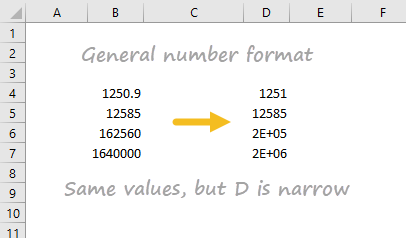
By default, cells start with the General format applied. The display of numbers using the General number format is somewhat “fluid”. Excel will display as many decimal places as space allows, and will round decimals and use scientific number format when space is limited. The screen below shows the same values in column B and D, but D is narrower and Excel makes adjustments on the fly.
How to change number formats
You can select standard number formats (General, Number, Currency, Accounting, Short Date, Long Date, Time, Percentage, Fraction, Scientific, Text) on the home tab of the ribbon using the Number Format menu.
Note: As you enter data, Excel will sometimes change number formats automatically. For example if you enter a valid date, Excel will change to “Date” format. If you enter a percentage like 5%, Excel will change to Percentage, and so on.
