Working with the Excel environment
The Excel interface
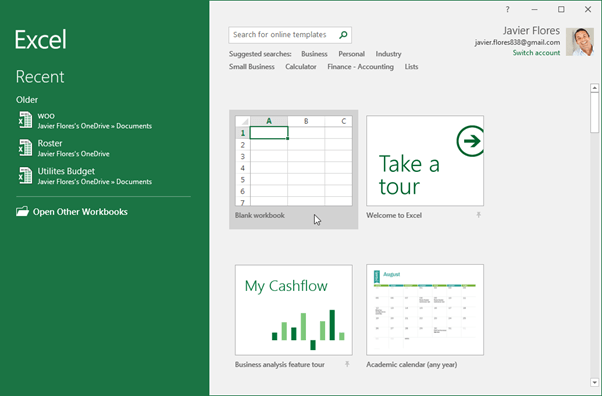
When you open Excel 2016 for the first time, the Excel Start Screen will appear. From here, you’ll be able to create a new workbook, choose a template, and access your recently edited workbooks.
- From the Excel Start Screen, locate and select Blank workbook to access the Excel interface.
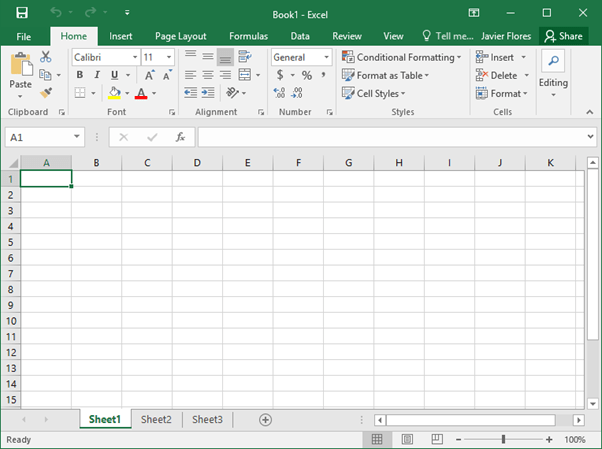
Click the buttons in the below to become familiar with the Excel interface.
The Ribbon
Excel 2016 uses a tabbed Ribbon system instead of traditional menus. The Ribbon contains multiple tabs, each with several groups of commands. You will use these tabs to perform the most common tasks in Excel.
- Each tab will have one or more groups.

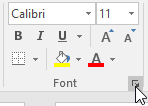
- Some groups will have an arrow you can click for more options.
- Click a tab to see more commands.

- You can adjust how the Ribbon is displayed with the Ribbon Display Options.
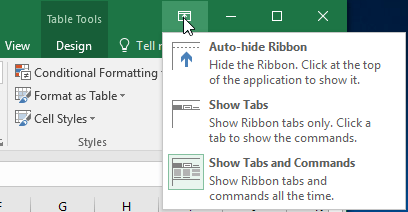
Certain programs, such as Adobe Acrobat Reader, may install additional tabs to the Ribbon. These tabs are called add-ins.
To change the Ribbon Display Options:
The Ribbon is designed to respond to your current task, but you can choose to minimize it if you find that it takes up too much screen space. Click the Ribbon Display Options arrow in the upper-right corner of the Ribbon to display the drop-down menu.
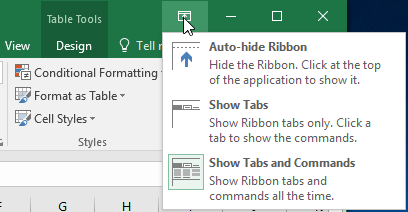
There are three modes in the Ribbon Display Options menu:
- Auto-hide Ribbon: Auto-hide displays your workbook in full-screen mode and completely hides the Ribbon. To show the Ribbon, click the Expand Ribbon command at the top of screen.
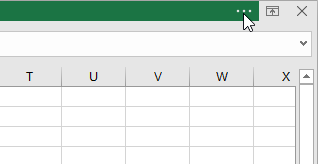
- Show Tabs: This option hides all command groups when they’re not in use, but tabs will remain visible. To show the Ribbon, simply click a tab.
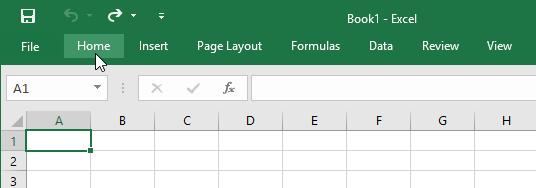
- Show Tabs and Commands: This option maximizes the Ribbon. All of the tabs and commands will be visible. This option is selected by default when you open Excel for the first time.
The Quick Access Toolbar
Located just above the Ribbon, the Quick Access Toolbar lets you access common commands no matter which tab is selected. By default, it includes the Save, Undo, and Repeat commands. You can add other commands depending on your preference.
To add commands to the Quick Access Toolbar:
- Click the drop-down arrow to the right of the Quick Access Toolbar.
- Select the command you want to add from the drop-down menu. To choose from more commands, select More Commands.
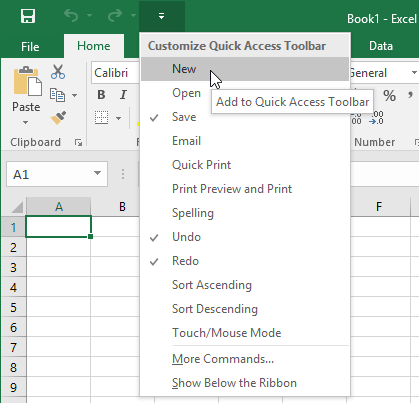
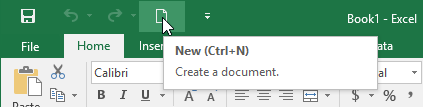
- The command will be added to the Quick Access Toolbar.
Worksheet views:
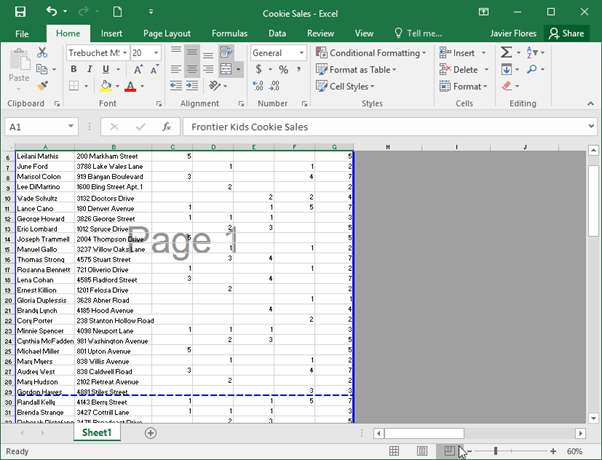
Excel 2016 has a variety of viewing options that change how your workbook is displayed. These views can be useful for various tasks, especially if you’re planning to print the spreadsheet. To change worksheet views, locate the commands in the bottom-right corner of the Excel window and select Normal view, Page Layout view, or Page Break view.
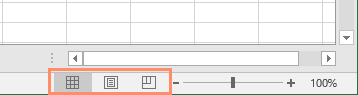
- Normal view is the default view for all worksheets in Excel.
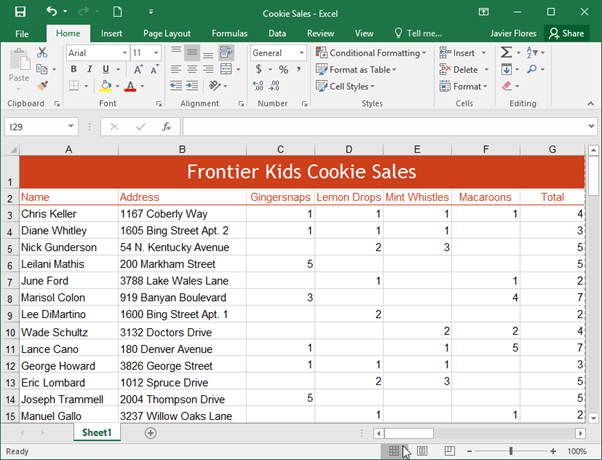
- Page Layout view displays how your worksheets will appear when printed. You can also add headers and footers in this view.
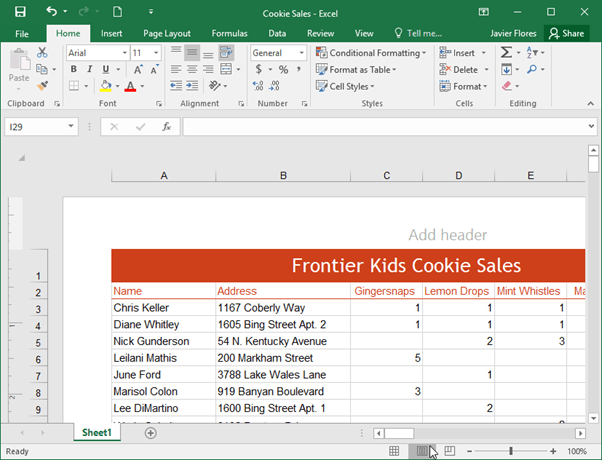
- Page Break view allows you to change the location of page breaks, which is especially helpful when printing a lot of data from Excel.