
Copy/Paste a Formula
Track Your Course Progress
You are currently studying as a guest. Your course progress and quiz results will not be saved unless you login to your EduCourse account. Login to track your progress and qualify for your certificate.
When you copy a formula, Excel automatically adjusts the cell references for each new cell the formula is copied to. To understand this, execute the following steps.
1. Enter the formula shown below into cell A4.

2a. Select cell A4, right click, and then click Copy (or press CTRL + c)…
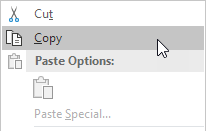
…next, select cell B4, right click, and then click Paste under ‘Paste Options:’ (or press CTRL + v).

2b. You can also drag the formula to cell B4. Select cell A4, click on the lower right corner of cell A4 and drag it across to cell B4. This is much easier and gives the exact same result!

Result. The formula in cell B4 references the values in column B.

