
To open an existing document
Login to save your progress and get your certificate.
Your course progress is only saved when you are logged in.
In addition to creating new documents, you’ll often need to open a document that was previously saved. To learn more about saving documents, visit our lesson on Saving and Sharing Documents.
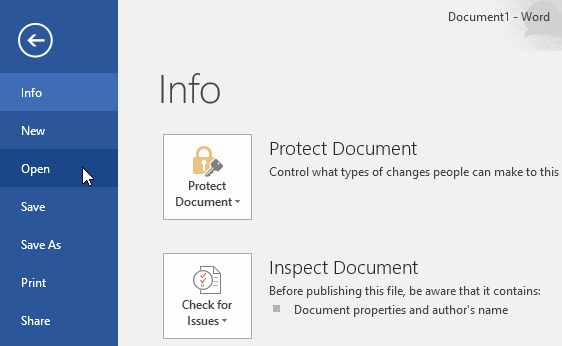
- Navigate to Backstage view, then click Open.
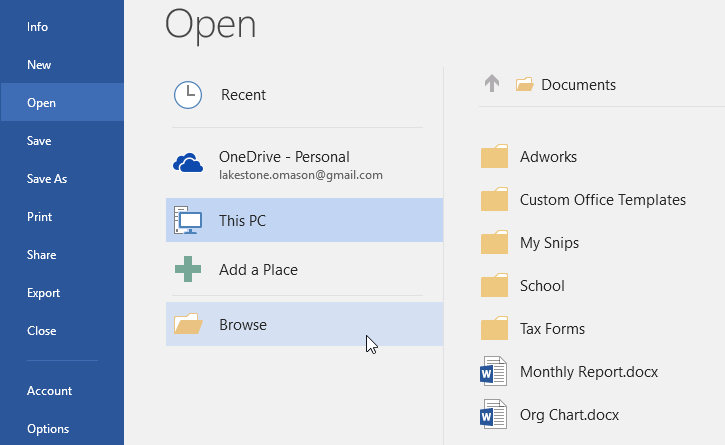
- Select This PC, then click Browse. Alternatively, you can choose OneDrive to open files stored on your OneDrive.
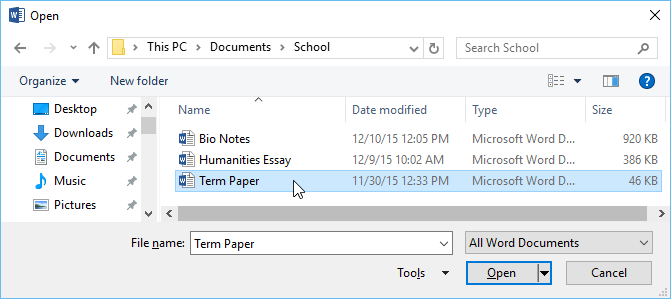
- The Open dialog box will appear. Locate and select your document, then click Open.
- The selected document will appear.
Most features in Microsoft Office, including Word, are geared toward saving and sharing documents online. This is done with OneDrive, which is an online storage space for your documents and files. If you want to use OneDrive, make sure you’re signed in to Word with your Microsoft account. Review our lesson on Understanding OneDrive to learn more.
Want to save your place in this course?
Login or register to save progress and work toward your certificate.