
Hide or show your ribbon
Track Your Course Progress
You are currently studying as a guest. Your course progress and quiz results will not be saved unless you login to your EduCourse account. Login to track your progress and qualify for your certificate.
Hide or show your ribbon
- Open Word.
- To Hide the ribbon In the top right corner of the app, choose the ^.
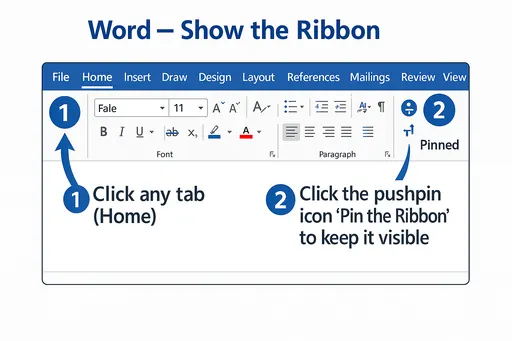
In Microsoft Word, click any tab to expand the Ribbon, then click the pushpin icon at the right (Pin the Ribbon) to keep it visible at the top
If you’re using Read Mode, press the Esc key to display your ribbon.
Customize the ribbon
To open Customize the Ribbon and keyboard shortcuts window
- Go to File > Options > Customize the Ribbon.
Notes: To save time, you can do multiple additions and changes while the window is open, and only save when you’re done.
- To save your changes and see the results, select OK in the customize window.
