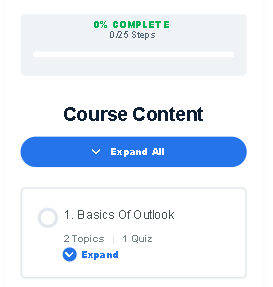
This easy guide explains how to enrol into a course on EduCourse. It walks you through choosing a course, enrolling with a single click, and accessing your lessons immediately so you can start learning at your own pace and track your progress from the moment you join.
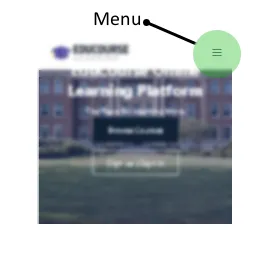
Use the menu options
Click on the menu icon to bring up the main navigation menu.
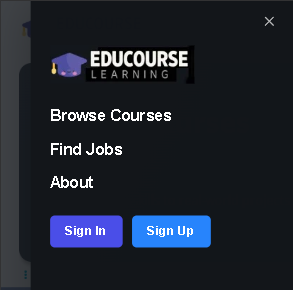
Choose Browse Courses
From the menu options choose Browse Courses
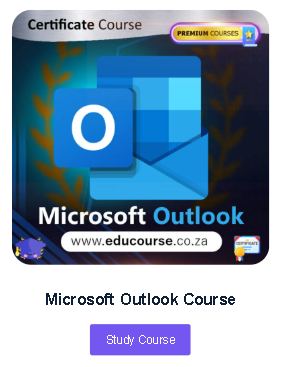
Select a course to start
In this example we’ll choose the Microsoft Outlook course, to choose a course click the Study Course button. You can choose any course.
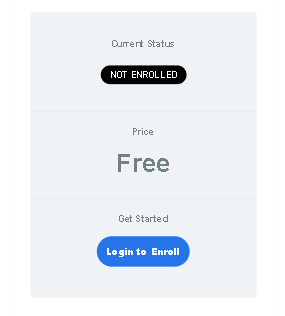
Choose Login to Enroll
When you try to access a new course, the course status will say “Not Enrolled” – to begin the course you must choose Login to Enroll. If you’re already logged in the button will instead say “Take this course“
Log in to your account
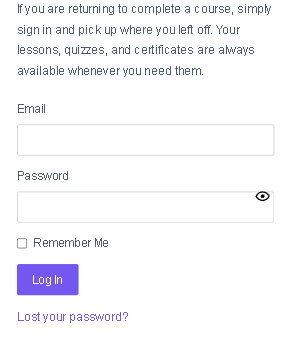
Fill in the log in form, if you don’t have an account use our How to Register a free account guide.
Course status updated
The course status will now say 0% Completed, which means you can now access the course material.