Course Completion Documents

Letter of Completion

Access your official Letter of Completion confirming successful course completion on the EduCourse platform.
Browse Courses

What’s an EduCourse Letter of Completion?

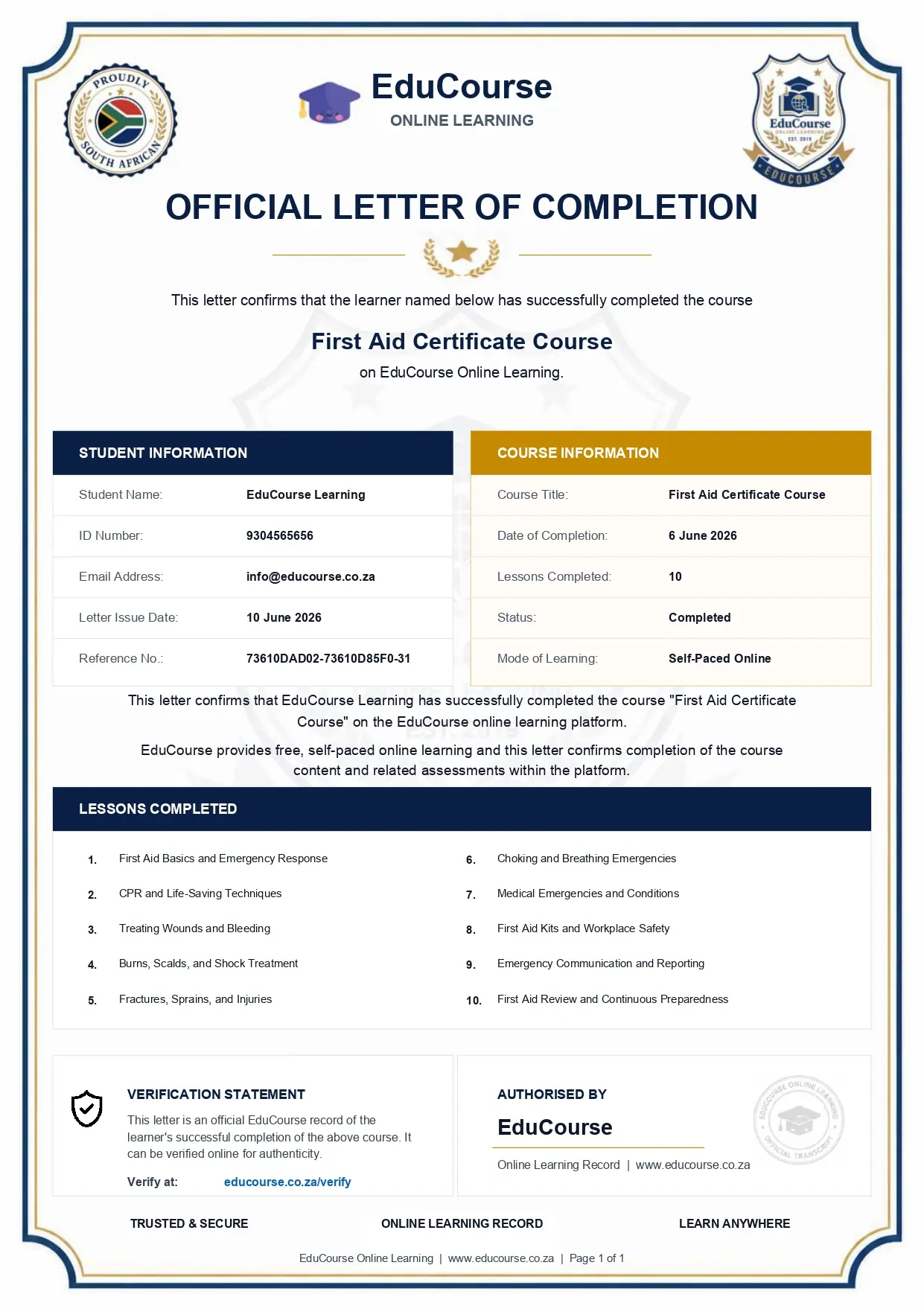
An EduCourse Letter of Completion is an official digital document issued to learners who have successfully completed a course on the EduCourse platform. It confirms that all required lessons, topics, and assessments for the course have been completed within the platform.

The letter serves as formal written confirmation of course completion and is generated directly by EduCourse upon successful completion.

What’s Included on an EduCourse Letter of Completion

An EduCourse Letter of Completion includes the following information:

  • Learner’s Full Name
  • Registered Email Address
  • 13 Digit I.D Number
  • Course Title
  • Date of Completion
  • Summary Confirmation of Course Completion
  • List of Lessons Completed
  • EduCourse Branding & Issuer Details
  • Issuing Authority Signature

This information confirms that the learner has completed the course content and related assessments on the EduCourse platform and provides an official record of completion.

To access your Letter of Completion, click the download button next to the course you’ve completed.

Please log in to view your Letters of Completion.

EduCourse Help

Find quick answers to common questions.

How to Register

To register on EduCourse:

  1. Go to the registration page:

    Register on EduCourse
  2. Enter your details (name, email, and password)
  3. Click Register / Sign Up
  4. Log in to your account

You can then enrol in any course and start learning immediately.

Was this helpful?
Thank you for your feedback.

How to Start a Course?

To start a course on EduCourse, you must first be logged in to your account.

  1. Go to the Browse Courses page:

    Browse EduCourse Courses
  2. Choose the course you want to study
  3. On the course page, click Take This Course
  4. After enrolling, start with Lesson 1

Some courses are open, so you may not see the Take This Course button. If that happens, simply start with Lesson 1.

Please make sure you are logged in so your course progress can be saved.

Was this helpful?
Thank you for your feedback.

Downloading Certificates

You must be logged in and finished a course. To download a certificate on EduCourse, you have two easy options.

  1. You can download it from the completed course page itself.
  2. You can also access your certificates by going to the menu, choosing Academic Records, and then selecting

    My Certificates
    .

To access your certificate, click the certificate icon.

On the certificate page, you can click the certificate preview to download it or scroll down and click Download PDF.

Was this helpful?
Thank you for your feedback.

How to Update Certificate Name?

To update your name on EduCourse, you must first be logged in to your account.

  1. Go to My Details from the menu.
  2. Edit your name in the profile section.
  3. Click Update to save your changes.

After updating your name, you can re-download your certificate with the corrected details.

Was this helpful?
Thank you for your feedback.

How to Verify a Certificate?

There are multiple ways to verify an EduCourse certificate.

1. Scan the QR Code

The easiest way to verify a certificate is to scan the QR code displayed on the certificate using your mobile device.


2. Verify Online

You can also verify a certificate online by visiting:


Verify Certificate

Enter either:

  • The user's South African I.D Number
  • Or the Certificate ID Number

The system will display matching certificate records if available.

Was this helpful?
Thank you for your feedback.