
Cell Content (Part 2)
Track Your Course Progress
You are currently studying as a guest. Your course progress and quiz results will not be saved unless you login to your EduCourse account. Login to track your progress and qualify for your certificate.
Copy and paste cell content:
Excel lets you copy the already entered content into your spreadsheet and paste the content into other cells, saving you time and effort.
- Choose the cell(s) you want to copy. In our example, we will select F9.
- On the Home page, click the Copy command or press Ctrl+C on your keyboard.
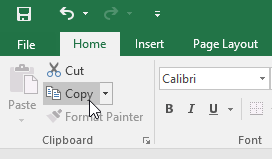
- Pick the cell(s) where the material is to be pasted. We will select F12:F17 in our case. A dashed box will appear around the copied cell(s)
- On the Home page, click the Copy command or press Ctrl+V on your keyboard.
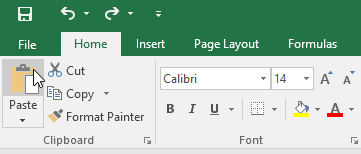
- The content will be pasted into the cells picked.
Cut and paste cell content:
Cutting enables you to transfer material between cells in comparison to copying and pasting, which duplicates cell content.
- Choose the cell(s) you want to cut. In our example, we will select G5:G6.
- Right-click the mouse and then pick the Cut command. Alternatively, you can use the command on the Home tab, or on your keyboard, press Ctrl+X.
- Pick the cells where you want to paste the content. The cut cells will now have a dashed box around them.
- Right-click the mouse and then pick the Paste command. Alternatively, you can use the command on the Home tab, or on your keyboard, press Ctrl+V.
- The cut material will be stripped and paste into the selected cells from the original cells.
Drag and drop cells:
You can drag and drop cells to move their contents, rather than cutting, copying and pasting.
- Pick the cell(s) you want to move.
- Hover the mouse over the selected cell(s) border before the mouse switches to a four-arrow pointer.
- Pick and drag the cells to the location of your choice.
- Release the mouse. The cells will be dropped in your chosen location.
