
Saving and Sharing Workbooks
Introduction
Whenever you make a new workbook in Excel, in order to view and edit it later, you will need to know how to save it. As with previous versions of Excel, files can be saved on your computer locally. But unlike older models, Excel 2016 also lets you use OneDrive to save a workbook to the cloud. You can also export and exchange workbooks directly from Excel with others.
To learn more about saving and sharing workbooks in Excel, watch the video below.
About OneDrive
You will have the option to use OneDrive, which is the online file storage service that is included with your Microsoft account, anytime you open or save a workbook. You will need to log into Office to allow this option.

Save and Save As
Two ways to save a file that are supported by Excel: Save and Save As. These alternatives function in similar ways, with a few major variations.
- Save: You will use the Save command to save your changes when you build or update a workbook. Most of the time, you will use this order. When you save a file, all you must do is pick the file name and location for the first time. After that save it with the same name and location, you can just press the Save command.
- Save As: To make a copy of a workbook while holding the original, you can use this command. You will need to select a different name and or position for the copied version when using Save As.
Saving a workbook:
Whenever you start a new project or make improvements to an existing one it is necessary to save your workbook. Save early and sometimes can avoid losing your job. You will also need to pay careful attention to where the workbook is located so that it is easy to find later.
- On the Quick Access Toolbar, locate and select the Save command.
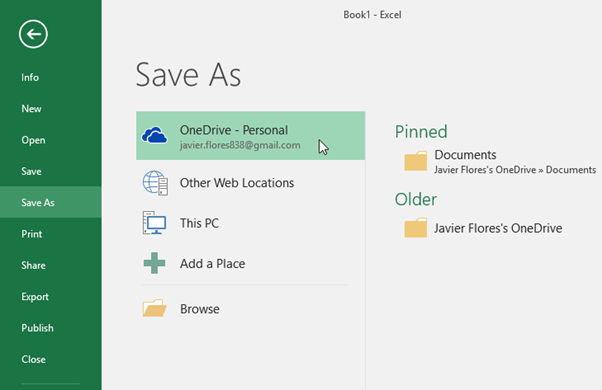
- The Save As pane will appear in Backstage view if you save for the first time.
- You then need to select a location to save the file and give it a file name. Select Computer, then click Browse if you want to save the workbook to the computer. Another way to save it is to click on OneDrive and save the file there.

- The Save As dialog box will appear. Select the place where you want to save the workbook.
- Put in the file name for the workbook, then click Save.

- The workbook will be saved. To save your changes as you edit the workbook, you can click the Save command again.
Even by pressing Ctrl+S on your keyboard, you can access the Save command.
Exporting workbooks
Excel workbooks are saved in the .xlsx file format by default. There might be occasions, however, when you need to use another file form, such as workbook for PDF or Excel 97-2003. Exporting your workbook from excel to a variety of file types is easy.
To export a workbook as a PDF file:
It can be particularly useful to export your workbook as an Adobe Acrobat document, generally referred to as a PDF file, if you are sharing a workbook with someone who does not have Excel. A PDF will make it possible for recipients to access your workbook material, but not to edit it.
- To access Backstage view, click the file tab
- Click Export and then choose Create PDF/XPS.

- The Save As dialog box will show. Choose where you want to export the workbook, enter a file name and click Publish.

Excel can only export the active worksheet by default. If you have several worksheets and you want all of them to be saved in the same PDF format, in the Save As dialog box for Options will appear. Select the whole workbook and then click OK.

Whenever you export a workbook as a PDF, much like printing a workbook, you will also need to remember how your workbook data will appear on each page of the PDF.
