If you need to update the name shown on your EduCourse Certificates, you can do so by editing your account details before downloading your certificate. Certificates are generated using the full name saved on your profile at the time of issue, so it’s important to ensure your name is entered correctly and matches your official identification. Once your name has been updated and saved, any newly generated certificates will reflect the corrected details. If a certificate has already been issued with an incorrect name, you may need to regenerate or re-download it after making the update so the system can apply the changes.
Log in to your EduCourse account
In order to update your details you must be logged in. Use the sign in button below to access your account. For a full guide on how to log in click here

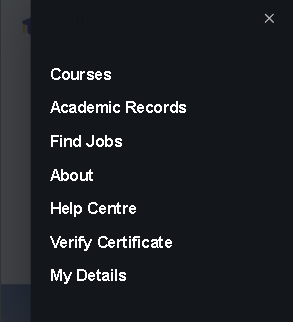
Choose My Details from the Menu
Once you’re logged in our menu will have new options such as “My Details” which is the last option.
Update Profile Details
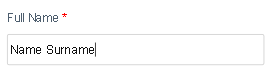
Only update “Full Name” to your name and surname.
Tip: You can update your name without entering your password.
Click Update Button
Scroll down and click the Update Button to save your changes, that’s it.
Now redownload your certificate and your updated name and surname will be added to your certificates.