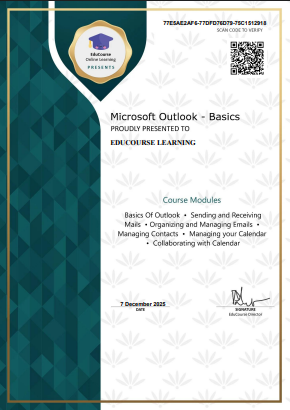
Once you have completed every lesson, topic, and exam in a course, LearnDash will automatically update your progress to 100%. When this happens, the certificate for that course becomes available for download. The certificate button appears only after the full course has been successfully completed, so if you do not see it yet, it usually means there is still a topic or quiz that needs to be finished before the system unlocks your certificate.
Ensure Course is Completed
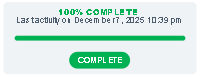
Quickly check your course progress to ensure it says 100% completed, certificates will not be generated if a course is incomplete.
Access Academic Records
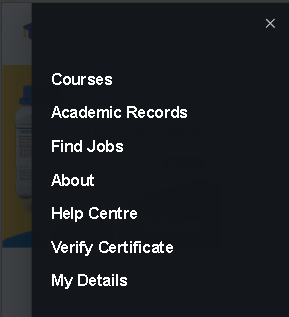
From the menu items, click on Academic Records. You will only see this menu item if you are logged in.
Choose My Certificates
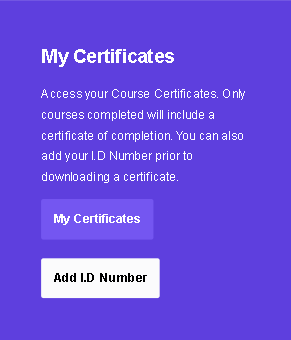
Scroll down and choose the first option “my certificates” to view all available certificates.
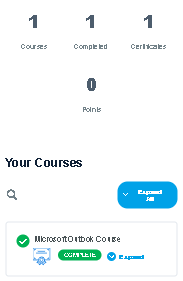
View Completed Courses
Inside your certificates dashboard you can view all of your completed Courses.
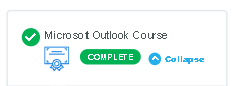
View Certificate
In order to view your certificate for a completed course, click on the certificate icon below the course title.
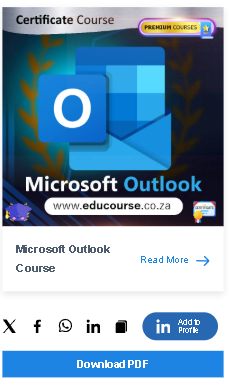
Download Certificate
You can now download the certificate by scrolling down and choosing Download PDF
Save to your device
Save the certificate to your device and you’re done. To add your I.D Number on a certificate, go through our guide for adding your I.D Number.