
This guide explains how modules and exams work on EduCourse and how progression is tracked. It shows how courses are structured into modules, lessons, and topics, how exams or quizzes are unlocked as you progress, and how completing each section moves you forward toward full course completion.
Course Overview
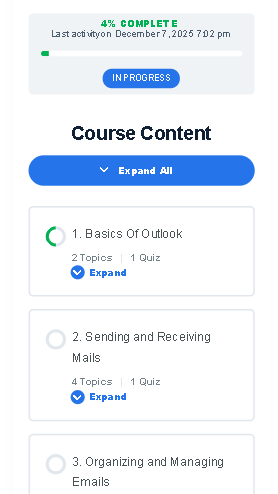
When you open a course, the first thing you’ll see is an overview that shows the lessons included and your overall progress. The progress bar at the top of the course page updates automatically each time you complete a topic or pass an exam. This helps you understand how far you’ve come and how much more you still need to complete.
Expanded Lesson Showing Topics
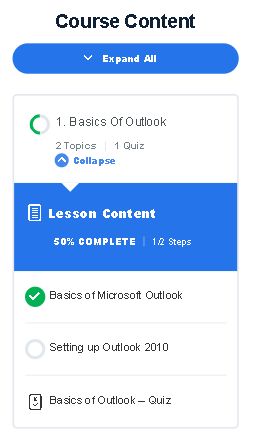
Inside each course, lessons act as the main modules. A lesson contains several topics, which must be completed one at a time in the order they appear. You can open a lesson to view all its topics, and you’ll immediately notice a green circular icon or a green tick next to any topic you have already finished. This indicator helps you continue from exactly where you left off. For example, if Lesson 1 displays three topics and only the first one shows a green tick, you know that your next step is to open Topic 2.
Inside a Topic Page

Progress Bar on a Topic Page
When you open a topic, you’ll see the learning content for that section. Topics are designed to be simple and easy to follow, often containing short explanations, examples, or demonstrations. At the bottom of each topic page, you’ll see a “Mark Complete” button. Clicking this button tells the system that you’ve finished reading the topic. The system then updates your progress and unlocks the next topic automatically.

Your progress is tracked continuously as you work through the modules. At the top of every course-related page you’ll find a progress section that reflects your most recent completion. When you return to a course later, you can simply look for the last topic without a green tick and continue from there. This helps you stay organised without needing to remember where you stopped.
Quiz / Exam Start Page
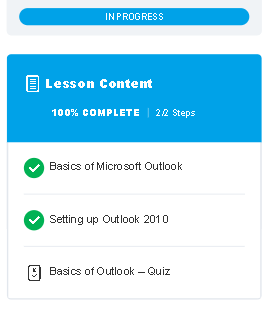
At the end of each lesson, you will find an exam or quiz. This exam only unlocks once all topics in the lesson are completed. The quiz may include different question types, such as multiple-choice or true/false questions. After you complete the quiz, your score is shown immediately. You must score 80% or more to complete the exam so you can move to the next lesson.
Start Quiz
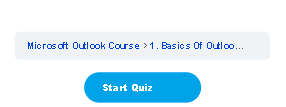
Click start quiz to begin the quiz and questions for this lesson.
A Quiz in Progress
After clicking start, you’ll need to begin answering the quiz. Click next to load more questions.

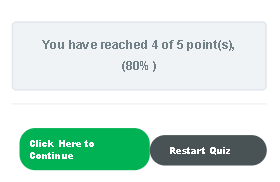
Quiz Results
After answering all questions, your results will be displayed. To move to the next lesson choose “Click here to continue”.
The option to move forward will only become available upon scoring 80% or more. When a quiz is failed you will instead be shown a “retry button”.
Course Completed

When you finish all exams and lessons your course will be 100% completed. This means you have officially finished a course and can now download your certificate.