
Once you have completed one or more courses, your Course Transcript becomes available automatically. The transcript is a single consolidated document that lists all courses you have completed on EduCourse, including their completion dates. As soon as a course is finished and marked as complete by the system, it is added to your transcript—there is no need to download separate documents for each course. If a recently completed course does not appear yet, it usually means one or more lessons, topics, or quizzes in that course are still pending and need to be completed before the system updates your transcript.
Ensure Courses are Completed
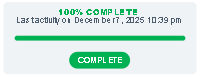
Quickly check your course progress to ensure it says 100% completed, transcripts will only be available if one or more course is completed.
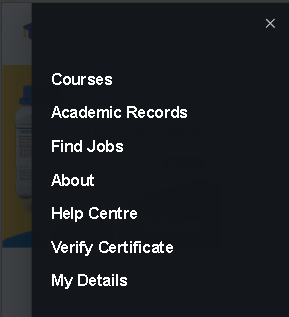
Access Academic Records
From the menu items, click on Academic Records. You will only see this menu item if you are logged in.
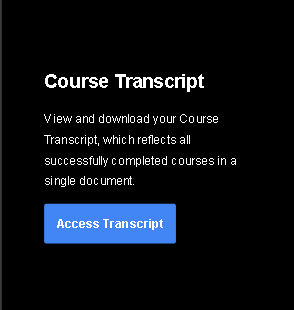
Choose Course Transcipt
Scroll down and choose the option “Course Transcript” to view and download your transcript.
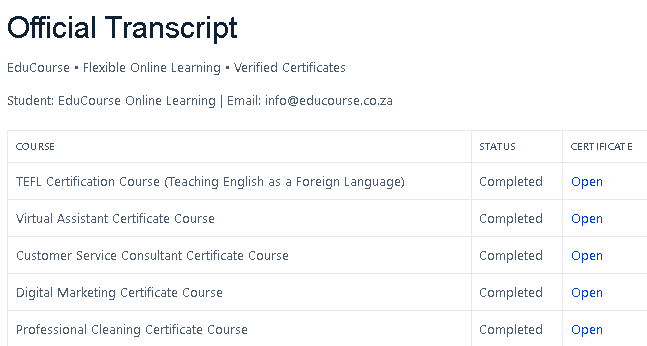
List of Completed Courses
Before downloading your transcript, you can view a list of all completed courses which will be listed on your transcript document.
Download Transcript
After the list of courses you will see a Download PDF button, click “download pdf “to access your transcript document and save it to your device.
