
Setting up Outlook 2010
You’ll need to set up Outlook before you can start using the application to manage your email, contacts, calendars, and tasks. The setup process will vary depending on how you plan to use Outlook:
- If you plan to use Outlook in the workplace with an employer-provided email account, it’s likely that your account will already be set up when you start using Outlook. If not, your office’s IT department or supervisor will help you with the setup process.
- If you plan to use Outlook on your home computer with a personal email account, either from an Internet service provider or a webmail service like Gmail, it’s easy to get started.
Using Outlook with a personal email account
While Outlook is most commonly used in the workplace, there are several reasons you might want to use it at home. If you use more than one email account—for example, one for personal email and one for work email—you can add multiple accounts to Outlook, allowing you to read and manage all of your messages at the same time. You’ll also have the added convenience of using a desktop application to keep all of your information—such as your contacts and calendar—together in one place.
To add a personal email account:
In our example, we’ll add a Gmail account.
- Click the File tab to access Backstage view.
- Locate and select Add Account below Account Information.
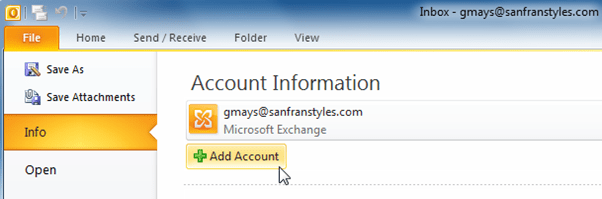
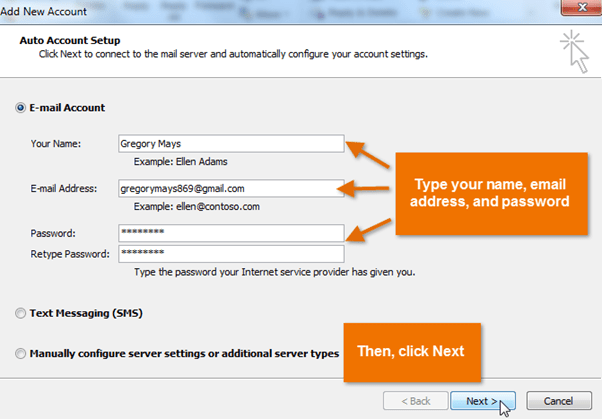
- The Add New Account dialog box will appear.
- Enter your name, email address, and password, then click Next.
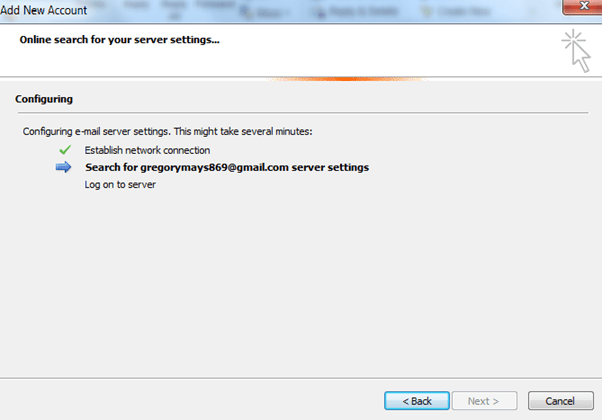
- Outlook will configure the account. This process can take several minutes.
- Once the configuration is complete, click Finish.
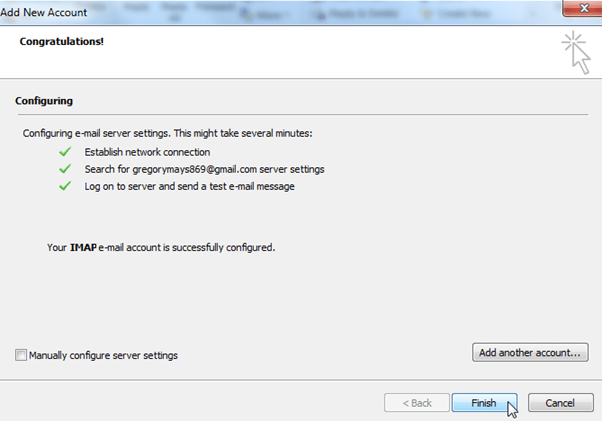
- The email account will be added to Outlook.
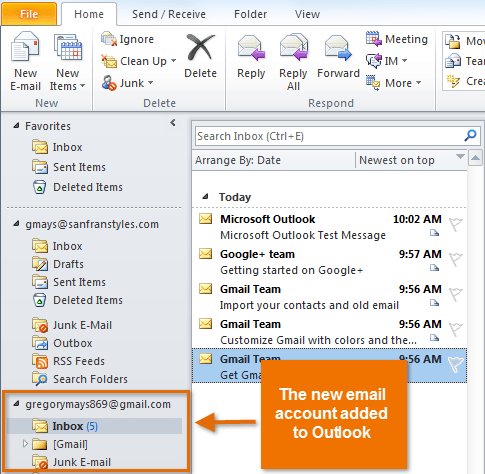
The first time you open Outlook on your home computer, the Add New Account dialog box will appear immediately. Follow the instructions in the procedure above to add your personal email account.
Adding a Gmail account will not import other Google services, such as your Gmail contacts or Google Calendar. If you want to access your Gmail contacts and Google Calendar through Outlook, you can use Google Apps Sync.