
Send and Receive E-mail Manually
Send and receive e-mail manual
When you manually send and receive mail, Outlook connects to the mail server(s), sends any mail you have waiting to be sent, and downloads any waiting mail for you.
Here are the three ways you can manually send and receive e-mail in Outlook:
- Click the Send/Receive All Folders button on the Quick Access toolbar, as shown in the figure.
- Click the Send/Receive tab and then click the Send/Receive All Folders button.
- Press F9.
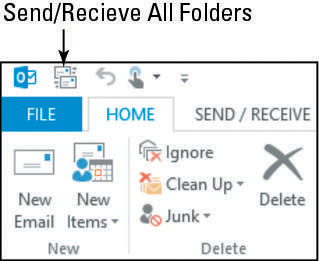
If the Send/Receive All Folders button doesn’t appear on the Quick Access toolbar, click the Send/Receive tab, right-click the Send/Receive All Folders button, and choose Add to Quick Access Toolbar.
Setting the send/receive interval
By default, the automatic send/receive interval is 30 minutes. You might prefer a different interval. For example, if you need to respond quickly to business requests via e-mail, you could set yours to check every 5 minutes.
- Click the Send/Receive tab, click the Send/Receive Groups button, and then choose Define Send/Receive Groups.
Alternatively, you can press Ctrl+Alt+S.
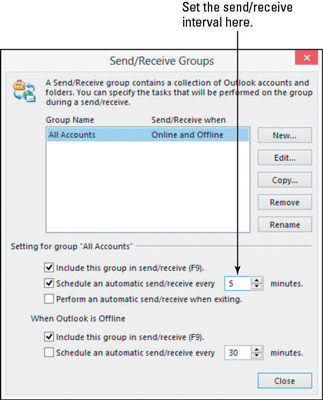
The Send/Receive Groups dialog box opens.
- In the Setting for Group “All Accounts” section, make sure that the Schedule an Automatic Send/Receive Every X Minutes check box is selected.
- Click the down increment arrow on the text box to change the number of minutes to 5, as shown in the figure.
In the dialog box, under the When Outlook Is Offline heading, you find a duplicate of the Schedule an Automatic Send/Receive Entry Every X Minutes option. That setting applies only when you aren’t connected to the Internet. You can have a different interval when offline than when online.
- Click the Close button.