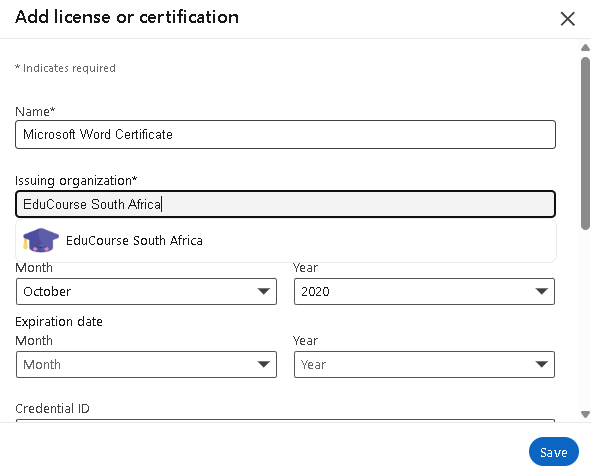
If you would like to add your EduCourse Certificate to LinkedIn, you can do so easily using our one-click “Add to LinkedIn” option available once your certificate has been issued. This feature automatically transfers your certificate details—such as the course title, issuer, and completion date—directly to your LinkedIn profile, saving you time and ensuring accuracy. The option becomes visible only after the course has been fully completed and the certificate is available. If you do not see the LinkedIn button yet, it usually means the course is not marked as 100% complete or the certificate has not been generated yet.
Access Academic Records
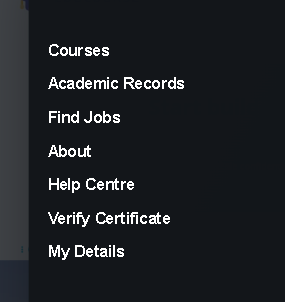
First lets access our academic records, go to the menu and choose “Academic Records”
View Certificates
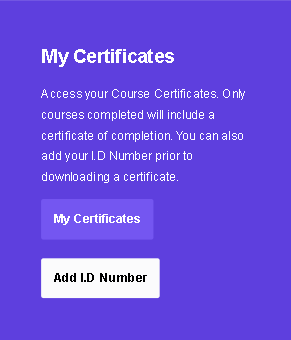
In the Academic Records page lets choose “My Certificates” so we can view and select a certificate to add to LinkedIn
Select a Certificate
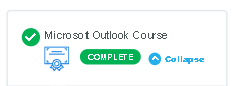
In the Certificates page we can view a list of all certificates.
Let’s choose a certificate that we want to add by clicking on the certificate icon.
Add to LinkedIn Button
After selecting a certificate, we now have the option to add to LinkedIn using the Add to LinkedIn Profile button below.
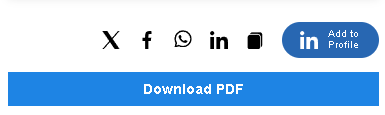
Add to LinkedIn Profile
After clicking Add to LinkedIn Profile from our previous step, we’ll automatically fill in all of your certificate information so you can upload to your LinkedIn profile easily. Simply choose save at the bottom to complete uploading your certificate.
Tip: For our add to LinkedIn feature to work correctly, you must already be logged in to your LinkedIn account.