
Quick Answer
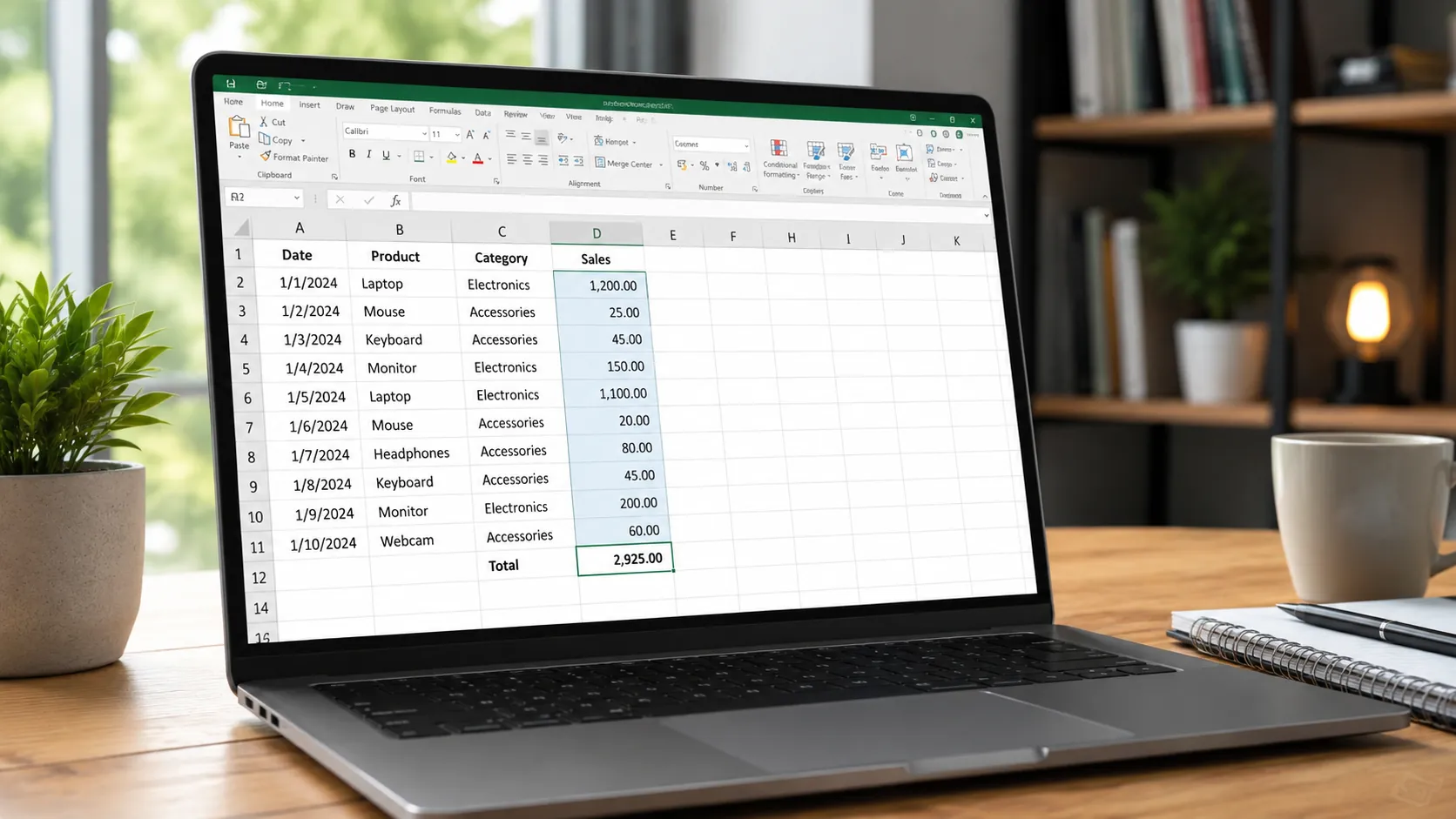
The SUM function in Excel adds up numbers quickly. To use it, click a cell, type =SUM(, select the numbers to add, close the bracket ), and press Enter. It works with single cells, ranges, and multiple ranges at once.
Many beginners worry about making mistakes when adding numbers in Excel, especially in work or study tasks like budgeting or reports. Learning how to use SUM correctly makes your work faster and reduces errors – a useful skill for students and workers across South Africa.
What Does the SUM Function Do?
SUM totals numbers you select. Instead of adding numbers yourself, Excel does it instantly. This helps when dealing with budgets, tracking costs, or summarising any number set. You can add several cells in a row or different groups of cells, even on different parts of your spreadsheet.
For example, typing =SUM(A1:A5) adds all numbers from cell A1 down to A5. You can also combine ranges like =SUM(A1:A5, C1:C5) to add numbers from two sets together.
How to Write a SUM Formula: Step-by-Step
- Click the cell where you want the result to show.
- Type
=SUM( - Use the mouse to highlight the cells you want to add or type their addresses, like
A1:A5. - Close the bracket with
). - Press Enter to see the total.
This is faster and safer than adding numbers one by one.
You can also use the AutoSum button (∑) in the toolbar. It guesses the cells to add and puts the SUM formula in for you. Just select your total cell next to the numbers and click AutoSum.
Common SUM Formula Mistakes to Avoid
- Forgetting the equal sign
=makes Excel treat the formula as text. - Using commas instead of colons for a range, like
A1,A5instead ofA1:A5. - Mixing numbers with text or dates in the cells to add can cause errors.
- Not closing the brackets will display errors or incomplete results.
- Trying to add cells with errors inside them will also show errors.
Checking your data before summing helps avoid these issues and keeps your totals accurate.
How SUM Helps in Daily Work and Study
Here are practical examples where SUM makes life easier:
- Budgeting: Add weekly or monthly expenses quickly.
- Project tracking: Sum hours worked by team members for reports.
- Sales reports: Total sales figures fast without manual adding.
- School projects: Calculate marks or results easily for assignments.
For instance, if you have sales figures in cells B2 to B10, just type =SUM(B2:B10) to get the total sales instantly.
FAQs About Using SUM in Excel
What is the difference between SUM and AutoSum in Excel?
Can SUM add cells that are not next to each other?
=SUM(A1, C3, E5).What happens if cells contain text or blank spaces in a SUM formula?
Can I sum values from multiple sheets in Excel?
=SUM(Sheet1!A1:A5, Sheet2!B1:B5).Mastering the SUM function is key to working well in Excel. If you want to learn more useful Excel skills, check out the Free Excel Course with Certificate in South Africa from EduCourse. This course helps you gain confidence and practical skills for work and studies.