
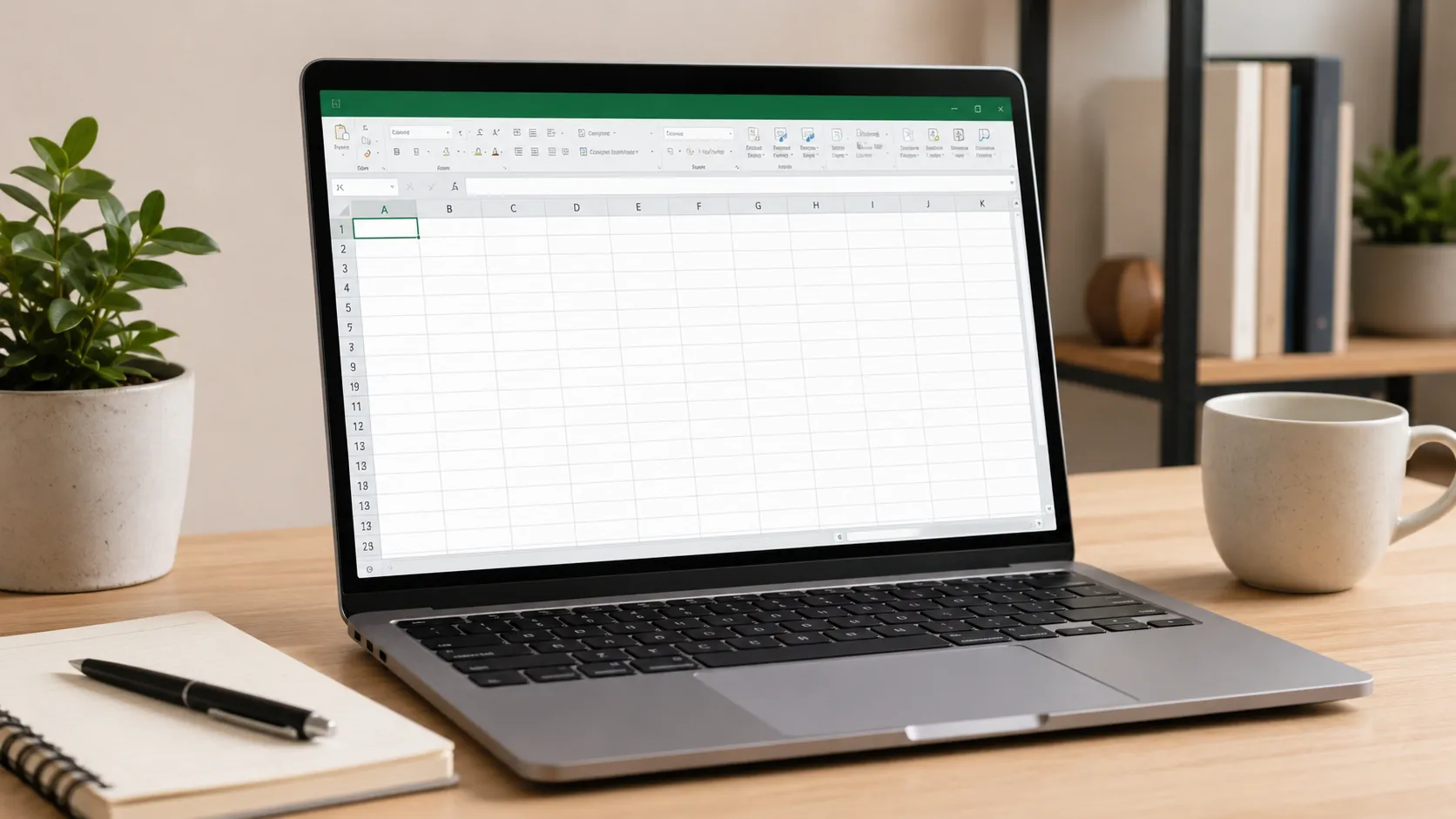
Minimalist desk setup with a laptop showing a blank Excel worksheet, ideal for a guide on creating a simple spreadsheet in Excel.

How to Create a Simple Spreadsheet in Excel

Quick Answer

Creating a simple spreadsheet in Excel involves opening a new workbook, entering data into cells, organising the data in rows and columns, and using basic formatting tools to improve readability. Start by typing your information, label your columns, apply simple formulas if needed, and save your file. This approach is easy to learn and perfect for beginners looking to manage data efficiently.
 
Minimalist desk setup with a laptop showing a blank Excel worksheet, ideal for a guide on creating a simple spreadsheet in Excel.

How to Create a Simple Spreadsheet in Excel

If you want to learn how to create a simple spreadsheet in Excel, this guide will walk you through the basic steps you need to get started. Whether you are managing expenses, creating a list, or tracking information, a simple spreadsheet offers an ideal way to organise your data clearly and efficiently. This is a key skill taught in a Free Excel Course with Certificate in South Africa.

A spreadsheet is essentially a table made up of cells arranged in rows and columns. Excel provides a user-friendly environment to enter, edit, and analyse your data. By mastering just a few foundational tools, you can create organised sheets that help you stay productive and organised.

Getting Started with Excel Spreadsheets

Begin by opening Microsoft Excel on your computer and selecting ‘New Workbook’. This blank canvas will be your spreadsheet. You will see a grid of empty cells identified by column letters (A, B, C…) and row numbers (1, 2, 3…). The intersection of each column and row is a cell where you enter your data.

Start by determining the purpose of your spreadsheet. For example, if you want to keep track of monthly expenses, decide on the columns you need, such as Date, Item, Category, and Amount. Place these as headers in the first row to organise your data logically.

Next, input your data under each header. Enter numbers, dates, or text as needed. You can move between cells using the arrow keys, tab or mouse. Excel automatically saves your data in each cell when you move away from it.

Basic Formatting and Organising Your Spreadsheet

To make your spreadsheet easy to read, use basic formatting. Highlight your header row and use bold text or a different font colour to distinguish it from data entries. You can also adjust the width of columns by placing your cursor on the line between column letters and dragging it to fit your content.

Wrapping text in cells allows all content to be visible without expanding the cell width too much. Merge cells if you need to create a title that spans multiple columns. These simple modifications improve clarity and presentation.

Use borders to separate rows and columns visually. This helps when working with large amounts of data and reviewing information quickly.

Adding Simple Formulas to Automate Calculations

One of Excel’s best features is its ability to calculate data automatically. For instance, if you have an ‘Amount’ column with expenses, you can use the SUM function to total these values. Click the cell where you want the total, type =SUM(, select the cells to add, and close with ). Press Enter to see the result.

Creating formulas helps you save time and reduces errors in manual calculation. You can also use simple functions like AVERAGE, MIN, and MAX to analyse your data.

Common Mistakes to Avoid When Creating Your Spreadsheet

1. Not using headers: Without clear headers, your data can be confusing to interpret. Always label columns and rows where appropriate.

2. Overloading cells: Keep the information in each cell concise. Avoid cramming too much text or numbers in one cell to maintain readability.

3. Ignoring formatting tools: Skipping formatting can make your spreadsheet harder to read. Use bold, colours, and borders consistently to highlight important data.

4. Forgetting to save: Always save your work regularly to avoid losing data. Use descriptive names for your files for easy retrieval.

Step-by-Step Checklist to Create a Simple Spreadsheet

  • Open Excel and create a new workbook.
  • Enter headers in the first row to define your columns.
  • Input your data clearly and accurately under each header.
  • Format headers using bold or distinct colours.
  • Adjust column widths and wrap text for clarity.
  • Apply borders to separate data fields if needed.
  • Use simple formulas like SUM or AVERAGE for calculations.
  • Save your spreadsheet with a clear file name.

Where to Go Next in Your Excel Learning Journey

Creating a simple spreadsheet is just the beginning of what you can achieve with Excel. To deepen your skills, explore courses that cover Excel environment, formulas, functions, and data management. The Free Excel Course with Certificate in South Africa offered by EduCourse is an excellent resource to build your confidence and competence in using Excel professionally and personally.

What is the best way to start learning Excel as a beginner?
The best way is to begin with understanding the Excel interface and basic operations like entering and formatting data. Free online courses, such as the one by EduCourse, provide structured lessons suited for beginners in South Africa.
Can I use Excel to track personal budgets?
Yes, Excel is ideal for tracking budgets. You can create simple spreadsheets with columns for income, expenses, and dates, then use formulas to calculate totals and savings.
How do I save my Excel spreadsheet correctly?
Click on ‘File’, then ‘Save As’. Choose a folder on your computer, give your file a clear name, and save it as an Excel Workbook (.xlsx) to keep your data intact and editable.
What are some common functions beginners should learn?
Beginners should start with simple functions like SUM, AVERAGE, COUNT, and IF. These functions help with basic calculations and data analysis in spreadsheets.
EduCourse Learning Team

The EduCourse Learning Team creates practical, beginner-friendly online learning content designed to help individuals build real skills at their own pace. With a focus on accessibility and structured learning, the team develops guides and resources across areas such as Microsoft Office, data entry, and workplace skills.

Their goal is to make online learning simple, flexible, and useful for anyone starting their skills development journey.

Articles: 169

EduCourse Help

Find quick answers to common questions.

How to Register

To register on EduCourse:

  1. Go to the registration page:

    Register on EduCourse
  2. Enter your details (name, email, and password)
  3. Click Register / Sign Up
  4. Log in to your account

You can then enrol in any course and start learning immediately.

Was this helpful?
Thank you for your feedback.

How to Start a Course?

To start a course on EduCourse, you must first be logged in to your account.

  1. Go to the Browse Courses page:

    Browse EduCourse Courses
  2. Choose the course you want to study
  3. On the course page, click Take This Course
  4. After enrolling, start with Lesson 1

Some courses are open, so you may not see the Take This Course button. If that happens, simply start with Lesson 1.

Please make sure you are logged in so your course progress can be saved.

Was this helpful?
Thank you for your feedback.

Downloading Certificates

You must be logged in and finished a course. To download a certificate on EduCourse, you have two easy options.

  1. You can download it from the completed course page itself.
  2. You can also access your certificates by going to the menu, choosing Academic Records, and then selecting

    My Certificates
    .

To access your certificate, click the certificate icon.

On the certificate page, you can click the certificate preview to download it or scroll down and click Download PDF.

Was this helpful?
Thank you for your feedback.

How to Update Certificate Name?

To update your name on EduCourse, you must first be logged in to your account.

  1. Go to My Details from the menu.
  2. Edit your name in the profile section.
  3. Click Update to save your changes.

After updating your name, you can re-download your certificate with the corrected details.

Was this helpful?
Thank you for your feedback.

How to Verify a Certificate?

There are multiple ways to verify an EduCourse certificate.

1. Scan the QR Code

The easiest way to verify a certificate is to scan the QR code displayed on the certificate using your mobile device.


2. Verify Online

You can also verify a certificate online by visiting:


Verify Certificate

Enter either:

  • The user's South African I.D Number
  • Or the Certificate ID Number

The system will display matching certificate records if available.

Was this helpful?
Thank you for your feedback.




