
Understanding the ChatGPT Interface
How to Navigate the ChatGPT Screen Easily
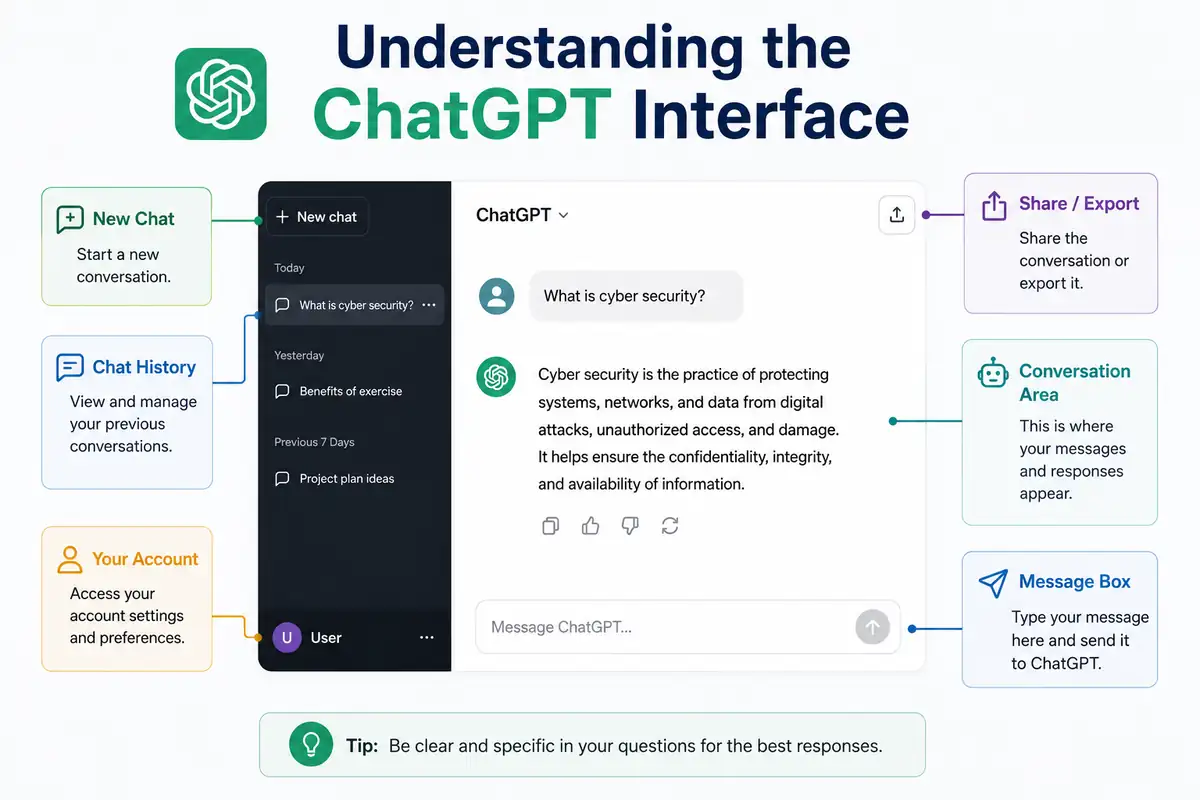
Understanding the ChatGPT interface is the first step to using this tool confidently. When you open ChatGPT, you will see a clean and simple screen designed to help you chat with the AI without confusion.
At the top, you usually find the ChatGPT logo or name. This is where you start new conversations or return to previous chats if you are logged in. The main part of the screen is the chat window where you type your questions or commands. Below this window, there is a text box where you enter your message.
After typing your question, press the ‘Send’ button or hit ‘Enter’ on your keyboard. The AI will respond in the chat window, just like a conversation with a friend. This makes it simple to ask anything and get a quick reply.
Key Interface Elements to Know
- Chat Window: Where the conversation happens. You read the AI’s replies here and type your messages.
- Text Input Box: The space at the bottom where you type your requests.
- Send Button: Click to send your message to ChatGPT. You can also press ‘Enter’ on your keyboard.
- New Chat: Use this option to start a fresh conversation if you want to ask something different.
On the side or top menu, there may be options to access settings, sign out, or check your account details. It is important to explore these menu items once you create your ChatGPT account so you can manage your profile and preferences.
Understanding the ChatGPT interface means you spend less time figuring out how the tool works and more time getting useful answers. Whether you want help with homework, writing, or learning new topics, the clear layout makes it easy to communicate with ChatGPT.
To get started, make sure you have an account or create one. Logging in gives you access to more features like saving previous chats and customising settings. If you are using ChatGPT on your phone, the interface adapts to smaller screens while keeping the same useful features visible.
In summary, the ChatGPT interface is user-friendly, designed for all learners, and helpful for new users in South Africa. Spend a few minutes getting to know where things are, and you will soon be chatting like a pro.
Live Scenario • Active Situation
You are a customer service agent tasked with quickly finding accurate product info using ChatGPT to assist a frustrated client.
There is no single perfect answer. Choose what you would do in this situation.
