To use Spell Check & Print Email
Track Your Course Progress
You are currently studying as a guest. Your course progress and quiz results will not be saved unless you login to your EduCourse account. Login to track your progress and qualify for your certificate.
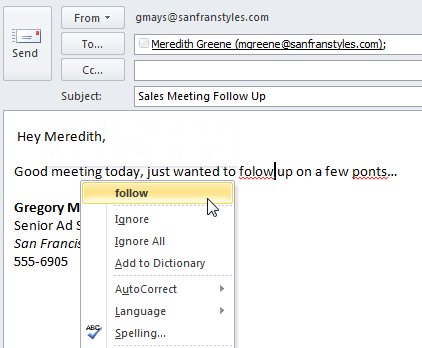
- Whenever you’re composing an email, it’s important to make sure your message is free from spelling and grammatical errors. Some spelling errors will be detected automatically as you write your message, which should feel familiar if you’ve ever used the Spell Check feature in Microsoft Word.
To print email messages
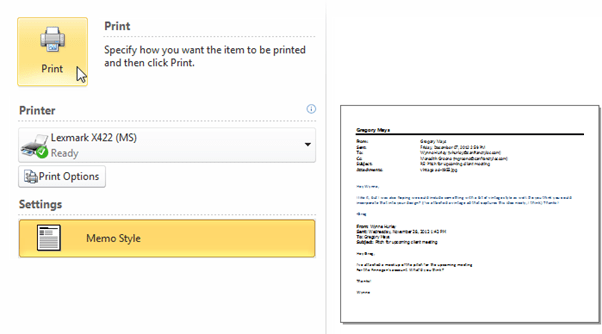
If you need to reference or document an important message away from your computer, it’s easy to print an email message.
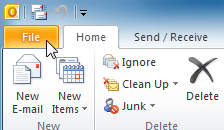
- Click the File tab on the Ribbon.
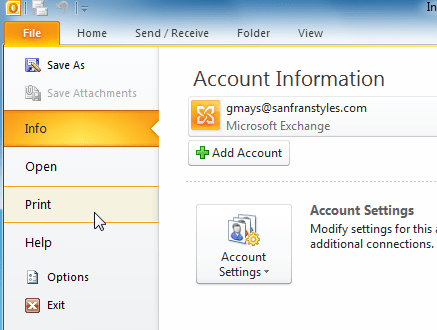
- Backstage view will appear. Locate and select Print.
- The Print pane will appear. Choose your settings, then click Print .