Adding Appointments and Meetings
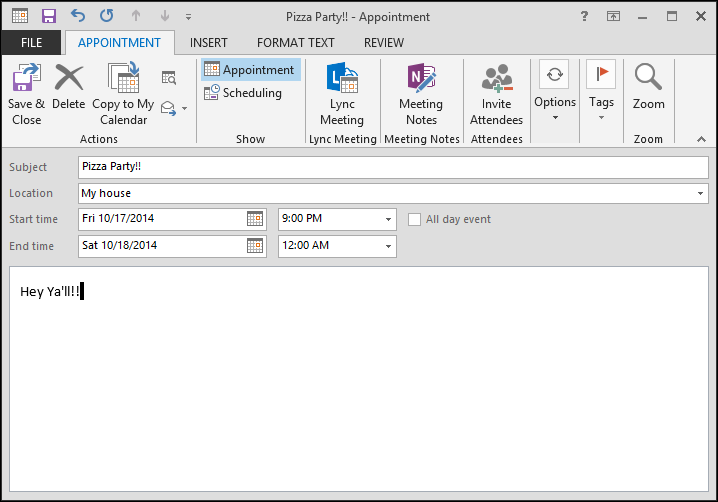
Let’s look at setting up appointments and meetings. In the following example, we’re organizing a pizza party. The subject of course, is the nature of the appointment. You can then add other specifics such as where the pizza party is taking place, and its start and end times.

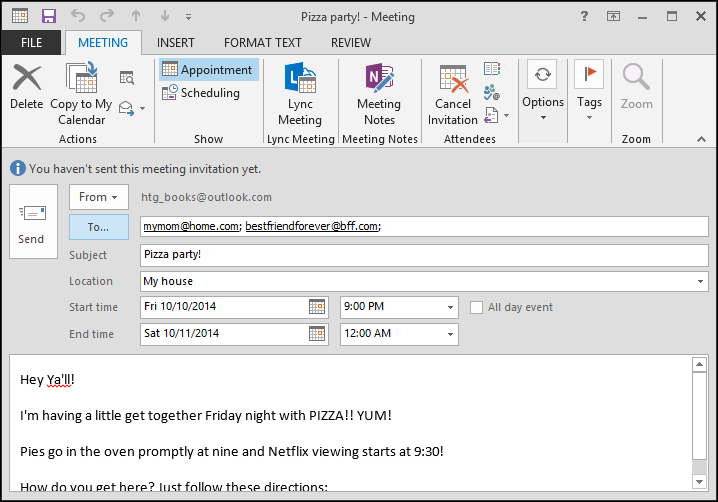
There’s a lot of space to add notes, instructions, or directions to the event. We’ll need to invite some attendees. Once you invite people, it’s no longer considered an appointment. Instead, Outlook changes it to a meeting. In the following screenshot, we see our new appointment turned meeting.
You can type in names by hand, or click the “To” button to add attendees from your address book.

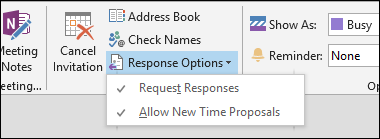
You can simply click “New Meeting” from the Ribbon’s Home tab. When you’re inviting attendees, you have the option of requesting further Response Options.

If you request a response, then invitees will have a chance to RSVP. Note, this works wonderfully with a Microsoft product such as an Outlook.com e-mail account, where you’re given response options directly in the message.

In Gmail, you’ll be able to act on an invite in pretty much the same way. However you respond, it will be sent to the event organizer and automatically added to their Outlook.

Now that we’re clear on appointments and meetings, we’ll move on to modifying and cancelling them.