
Configuring POS settings for retail use
How to Set Up Your POS System for Retail Success
Configuring POS settings for retail use is an important step when setting up your point of sale system. The right settings help your store run smoothly, improve customer service, and track sales accurately.
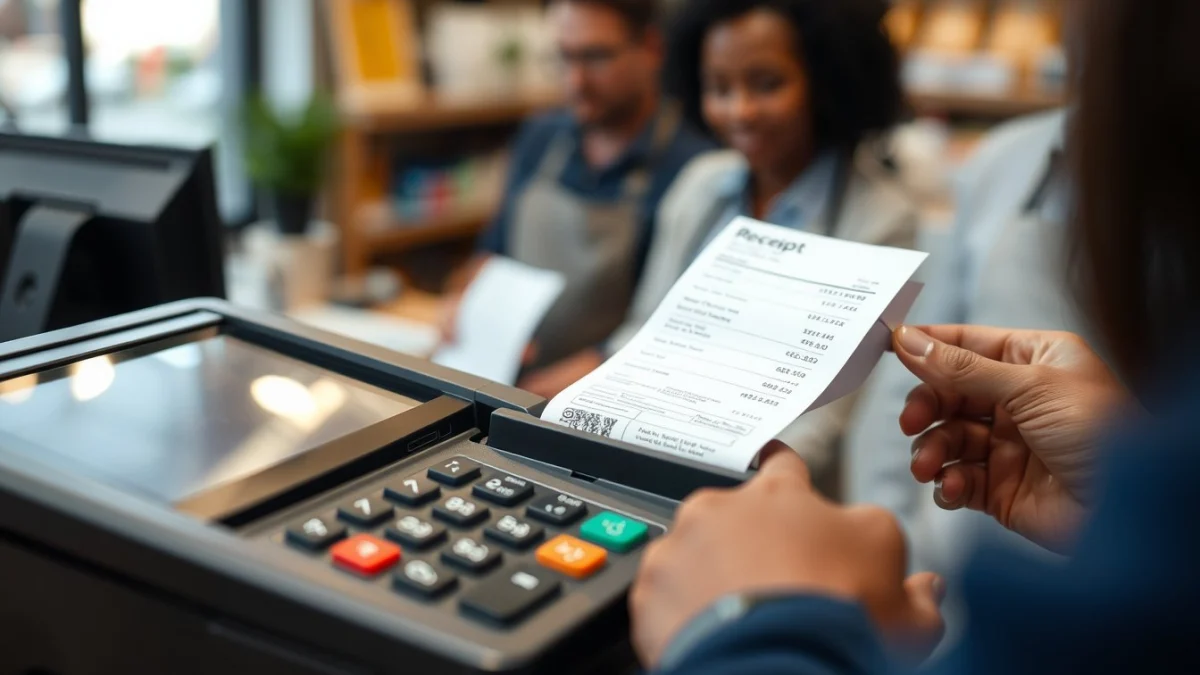
When you start, access the POS system’s settings menu. Here you will find options to customise how the system works for your retail business.
Key POS settings to configure for retail use
- Store Information: Enter your store name, address, and contact details. This information appears on receipts and reports.
- Tax Settings: Set the correct tax rates based on South African VAT rules. Decide if tax is included in the price or added at checkout.
- Payment Methods: Enable payment options like cash, credit/debit cards, and mobile money. Make sure these match the services you offer.
- Receipt Customisation: Configure what appears on customer receipts, such as store logo, return policy, and thank you messages.
- Barcode Scanner Setup: Link your barcode scanner to the POS to quickly add products by scanning.
- Product Management: Upload your product list with prices, categories, and stock levels to help with sales and inventory tracking.
- Discounts and Promotions: Set rules for discounts, loyalty points, or special offers customers can use.
- User Access: Create profiles for cashiers and managers with different permission levels to keep your system secure.
- Shift Management: Enable shift tracking for employees to record working hours and sales per shift.
Once these settings are configured, run a few test sales to check if everything works properly. Test scanning products, adding discounts, and printing receipts. This helps spot any errors before opening to customers.
Remember to back up your POS settings regularly. If the system updates or resets, you can restore your customised settings quickly.
Configuring POS settings for retail use is not just a one-time task. As your business grows or changes, review and update the settings. Keep pricing, tax rates, product lists, and payment options current to avoid issues during busy sales periods.
Using the right configuration will make your retail POS system faster and easier to use. This helps improve your customers’ experience and keeps your business running efficiently.
Live Scenario • Active Situation
You are a new store manager tasked with configuring the POS system before the morning shift at a busy retail store.
There is no single perfect answer. Choose what you would do in this situation.
